最佳實務
Visdom
Methods for SSH Tunnels
-
Start visdom on the instance (it listens on port 8097 by default)
-
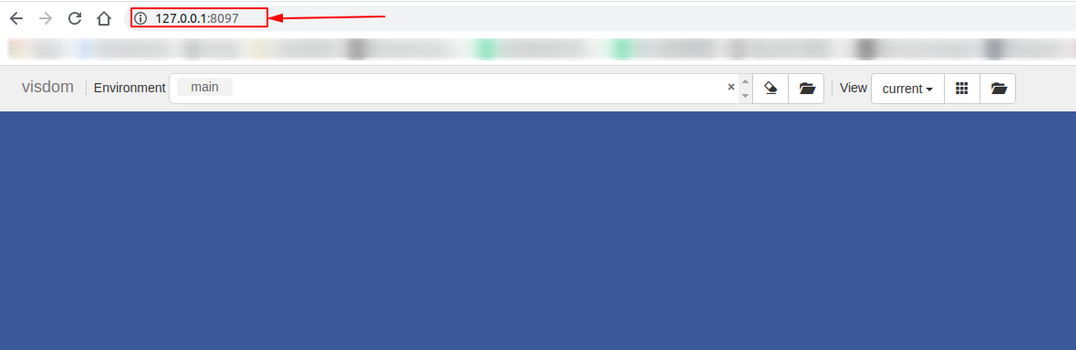
In the terminal on your local computer, run the command:
ssh -CNgv -L 8097:127.0.0.1:8097 root@region-1.webcal.com -p 37881. Here,8097:127.0.0.1:8097refers to port forwarding from port 8097 on the Visdom Server to port 8097 on your local machine, whileroot@region-1.webcal.comand37881are the access address and port for the SSH command in the instance, respectively. Please substitute the appropriate values.
Note: It is normal for no logs to appear after executing the SSH command above, as long as you are not prompted to re-enter your password or the session does not terminate.
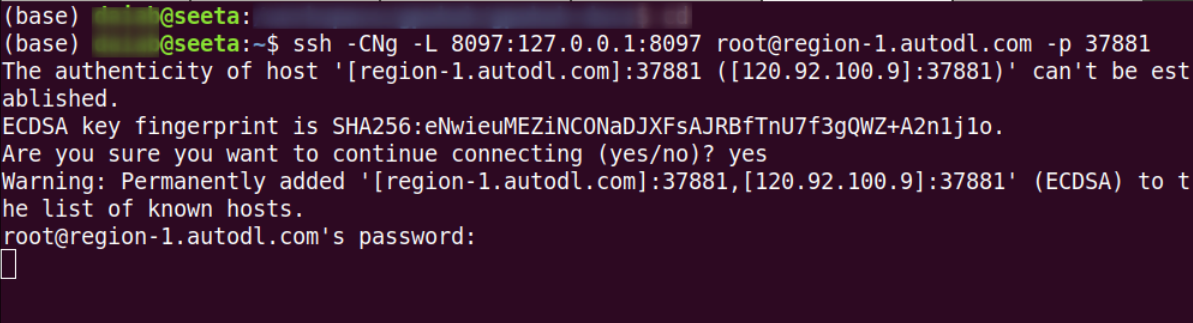
- Open Visdom by visiting
127.0.0.1:8097in your local browser.
Custom Service Methods
Start an instance and locate the “Custom Services” entry point
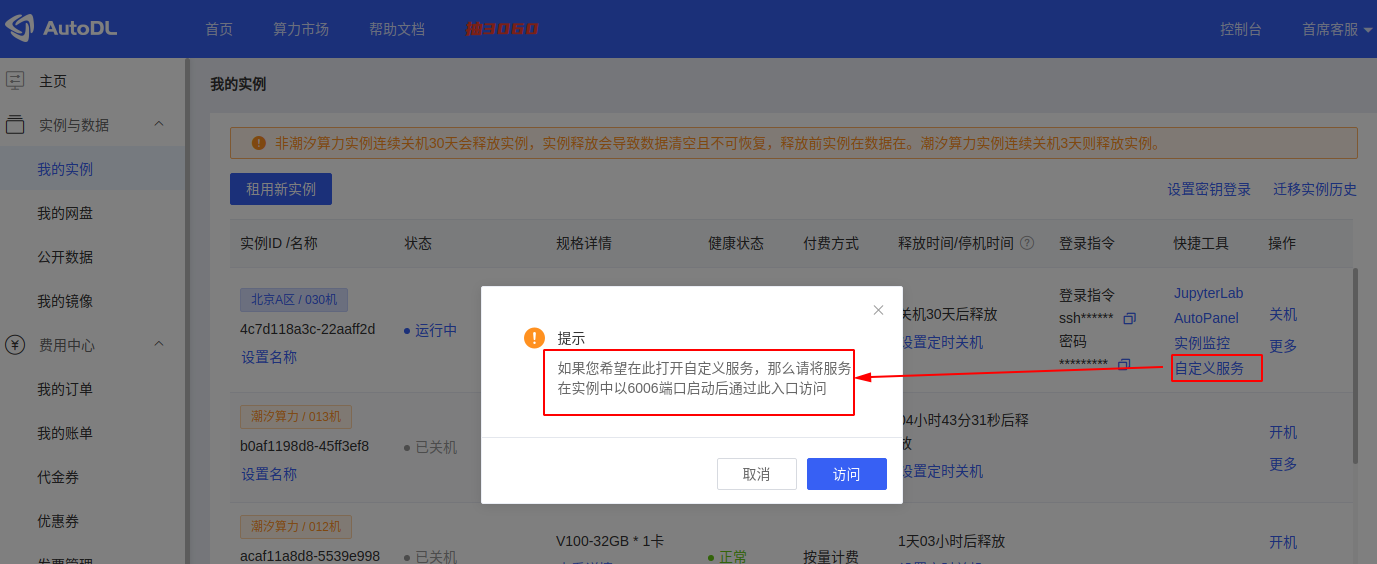
As indicated in the prompt, we simply need to start Visdom on port 6006 to access it via the “Custom Services” entry point:
Start Visdom on the instance and specify port 6006
# 如果没有安装visdom,请先执行pip install visdom安装
# visdom -port 6006
Checking for scripts.
It's Alive!
INFO:root:Application Started
You can navigate to http://container-7e5111bf0c-8a82bc6b:6006
Additionally, since the Visdom client uses the original port by default when connecting to the Visdom server, the following modification must be made when constructing the Visdom object in the client code:
vis = Visdom(server='http://localhost', port='6006', env='main')
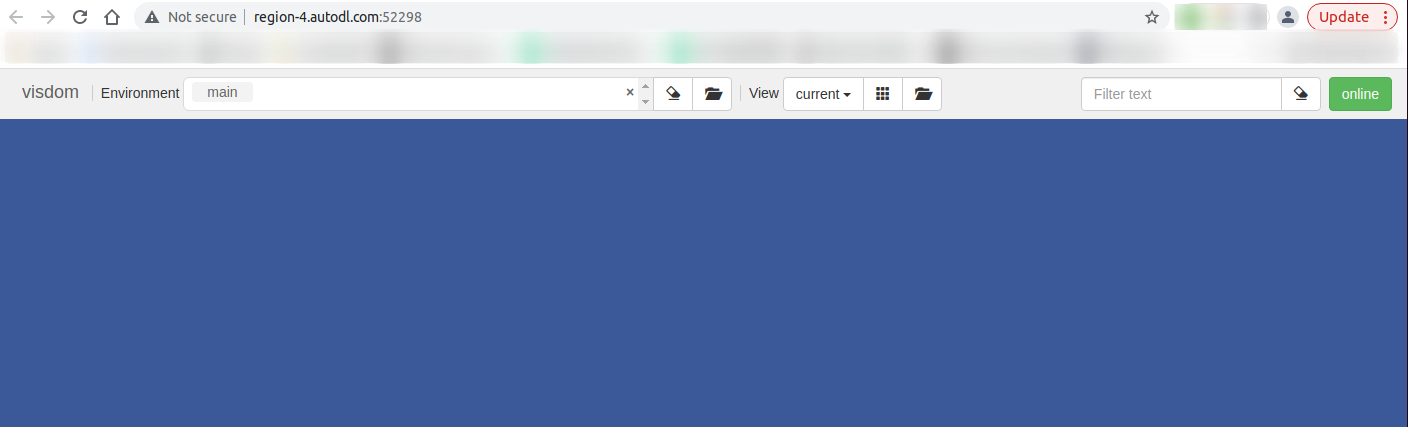
After startup, access the custom service in your local browser