
容器實例
Migration Examples
The local data that needs to be migrated from the instance includes data on both the system disk and the data disk; both can be migrated.
When migrating instances, there are two scenarios:
- Migrating instances within the same region (simple, fast). You can refer directly to the Migrating Instances Within the Same Region documentation.
- Migrating instances across regions.
To avoid the hassle of migrating instances due to a shortage of idle GPUs, you can switch from pay-as-you-go billing to annual or monthly billing (daily or weekly options are also available).Here’s how: When renting an instance, select the annual or monthly billing plan; for instances you’ve already rented, click “Switch to Annual/Monthly Billing” under “More Actions” for the instance. See the Convert Billing Plan documentation.
Migrating the System Drive
Whether migrating within the same region or across regions, we recommend using the Save Image feature when migrating the system disk.
After saving the image, you can select [My Images] in a new region to create a new instance.
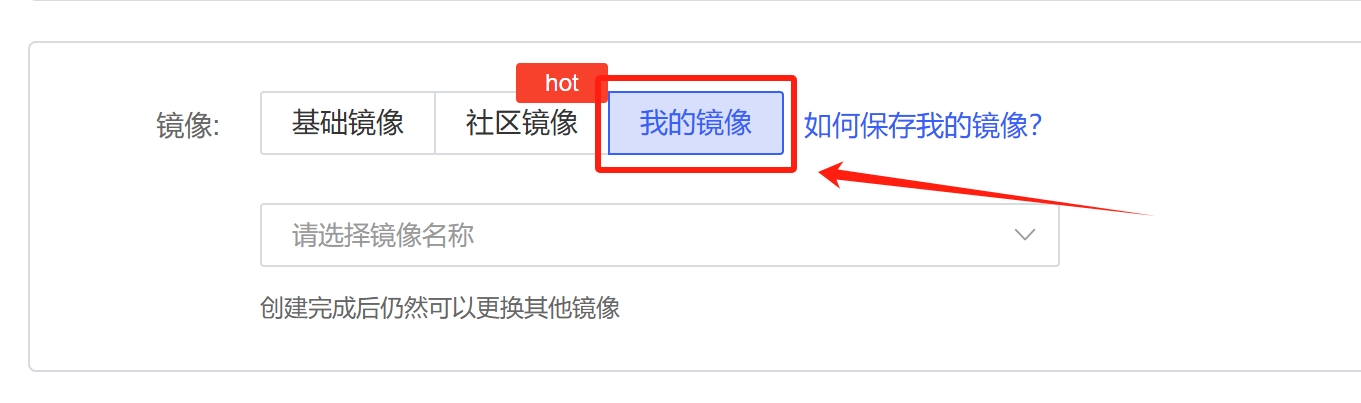
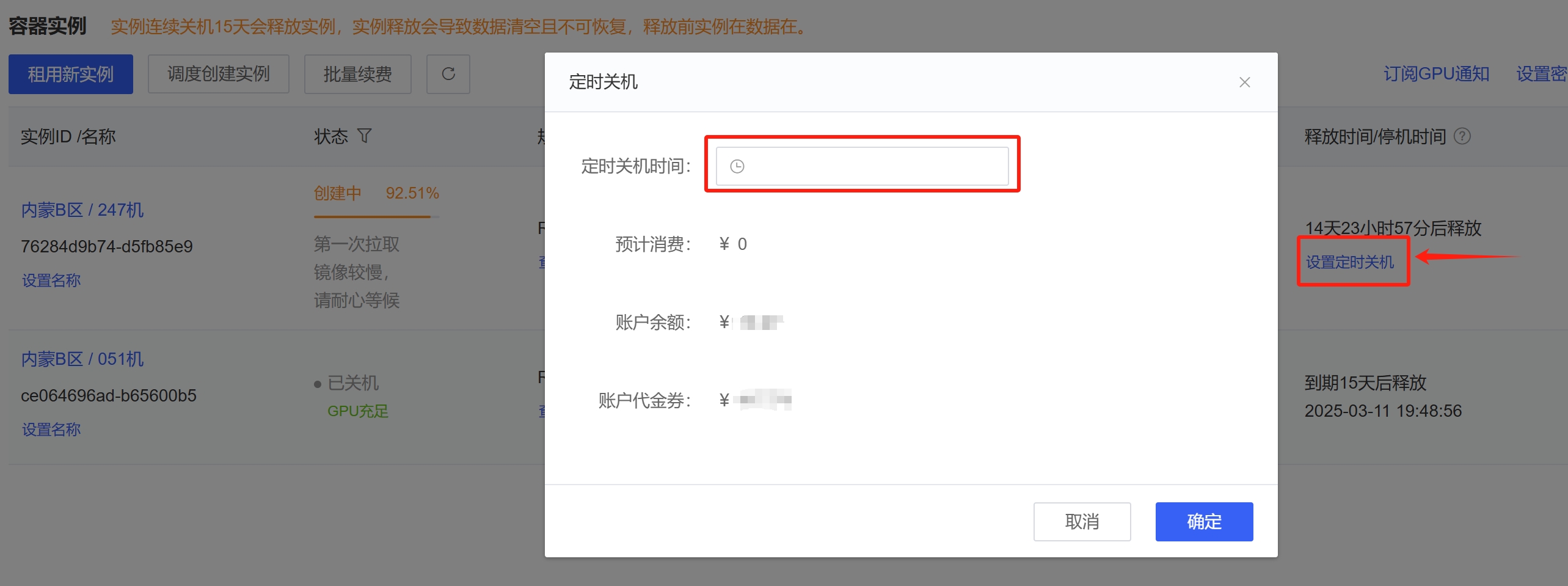
Creating an instance from a private image in a new region for the first time may take some time (the image needs to be transferred from the public network to the new region; no charges are incurred while the instance is in the "Creating" status). If you’re concerned about being charged for power-on costs after creation is complete, here’s a handy tip: you can [set a scheduled shutdown], setting the shutdown time to 3 minutes after the current time. For example, if it is currently 12:00, set the scheduled shutdown for 12:03. This way, once the instance is created, the shutdown will be automatically triggered to save you money.The next time you start the instance or create one in the same region, it will boot up much faster.
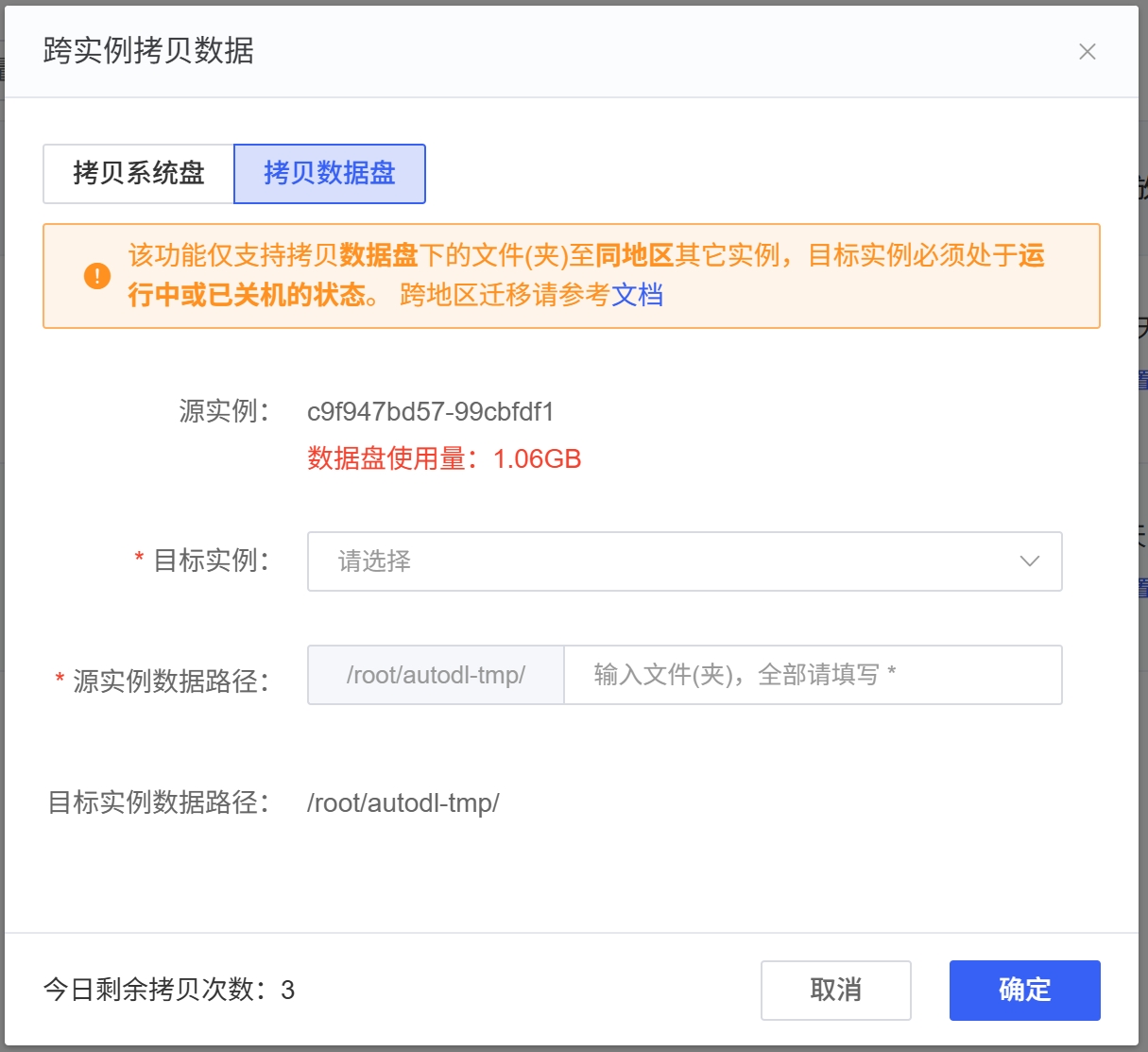
Migrating instance data disks: Same region
Access: Instance > “More Actions” > “Copy Data Across Instances” > “Copy Data Disk.”This feature copies data at speeds of approximately 100 MB/s or higher and is optimized for very high speeds, even with small files. If you are copying the entire data disk, simply enter the wildcard * in the “Source Instance Data Path” field.
⚠️If you are migrating data from Instance A to Instance B, Instance A is the source instance and Instance B is the destination instance.
Migrating Instance Data Volumes: Across Regions
Cross-region copies are transmitted over the public internet, which is relatively slow—typically around 10 MB/s. Additionally, transfer speeds may be several times slower when dealing with a large number of small files.
For example: Copy a file (or folder) from a source instance in Beijing Zone A to a target instance in Inner Mongolia Zone A.
So:
Step 1: The target instance in Region A of Inner Mongolia. Assume its SSH command is: ssh -p 66666 region-3.webcal.com
Step 2 In the terminal of the source instance in Beijing Zone A, execute
⚠️In the commands below, the parameter is
-rP, not-rp. All other parameters should also be replaced with the corresponding values from your SSH command.
scp -rP 66666 /root/webcal-tmp/xxx root@region-3.webcal.com:/root/webcal-tmp/
In other words, on the source instance in Beijing Zone A, remotely copy the files/folders within the instance (in this demonstration: /root/webcal-tmp/xxx) to the target instance in Inner Mongolia Zone A.
Advanced Methods for Remotely Copying Files:
The method described above for directly copying folders via scp can be very slow if there are many small files. You can use the following method to copy them instead.
Execute the following in the terminal of the source instance in Beijing Zone A:
cd /root/webcal-tmp/ && tar cf - * | ssh -p 66666 root@region-3.webcal.com "cd /root/webcal-tmp && tar xf -"
The command above copies all files from the /root/webcal-tmp directory on the source instance to the target instance.
Using a cloud storage service:
You can first upload the source instance data to a cloud storage service, and then have the target instance download the data from that service. For information on using cloud storage, see the Public Cloud Storage documentation.
Migration Example: Cross-Account
- Save the system disk as a private image and share it with the target account. See Sharing Images.
- For data volumes, refer to the method for migrating instance data volumes across regions described above.