最佳實務
KataGo
ikatago server address: ikatago-server project URL
ikatago client: ikatago-client project page
Create an Instance
Environment: GPU=3090 * 1, CUDA=11.3
Additionally, when creating a project, you can directly use Katago images created by other users in the CodeWithGPU community.
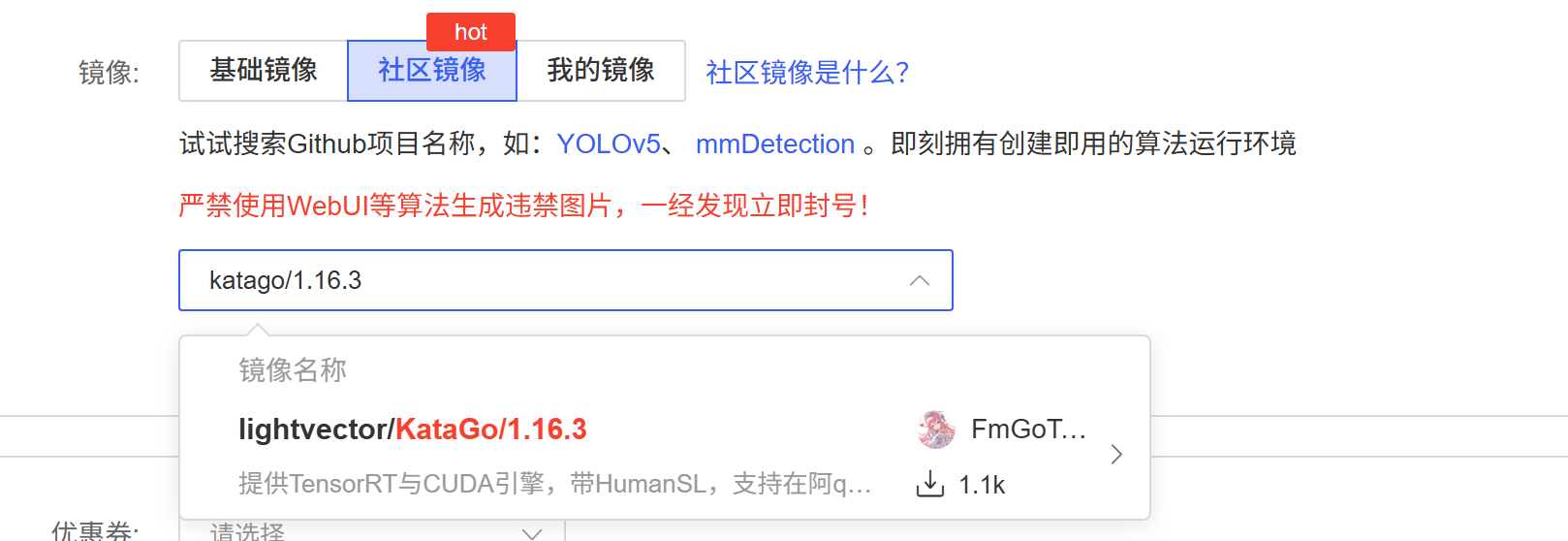
The process for creating an instance is omitted.
Installing ikatago-server
Download and install
wget https://ikatago-resources.oss-cn-beijing.aliyuncs.com/all/install.sh  #获取安装脚本
bash install.sh
Start the ikatago service
# katago会安装在当前目录下的work文件夹下
cd work
# 启动服务./run.sh  <useraname> <passwd> 。自定义用户名和密码 webcal / 123456为例
./run.sh webcal 123456
Accessing the ikatago Service Using a Client
Download ikatago-client locally to connect to the server, and use the Sabaki or Lizzie graphical tools to add the server instance. The following is a demonstration of how to start a machine-versus-machine game on Windows using Sabaki.
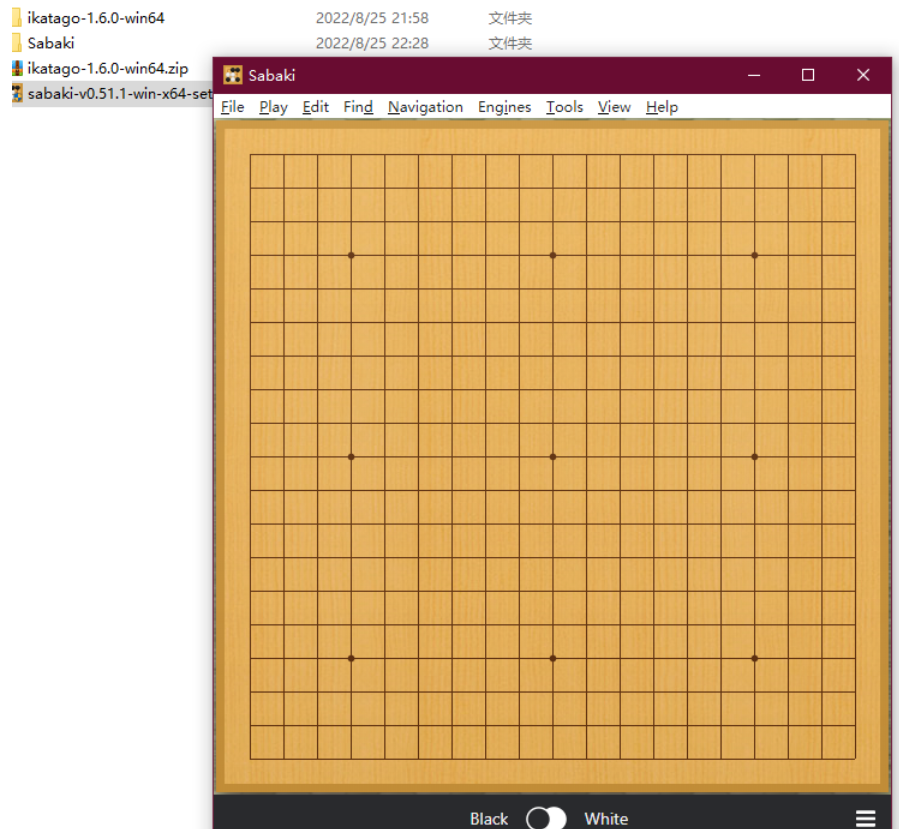
Sabaki tool download link: Sabaki tool. Take sabaki-v0.52.1-win-x64-setup.exe as an example.
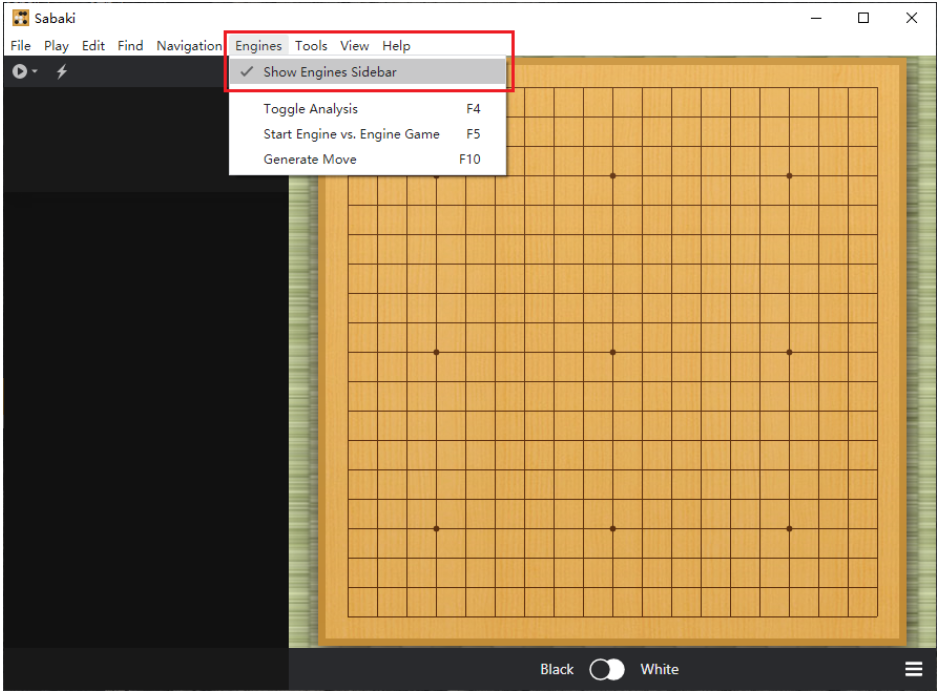
Click Engines - Show Engines Sidebar in the menu bar to display the engines sidebar.
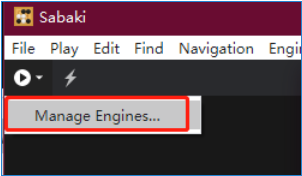
Select Manage Engines...
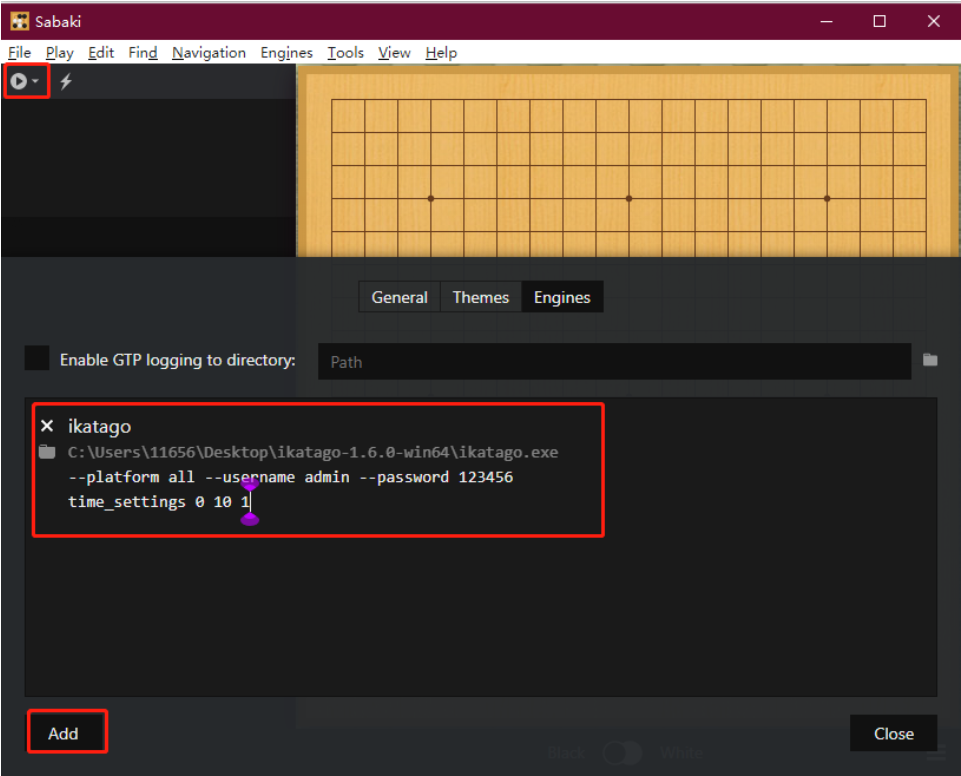
- Engine Name: Enter a custom name. For example, "ikatago"
- Path: The path to the ikatago client; click the folder icon to browse and select a location. (Using the client downloaded on Windows as an example)
- Parameters: ikatago client parameters; replace the username and password with the username and password used when starting the server. --platform all --username USER_NAME --password USER_PASSWORD (using a custom username and password as an example)
- Initial commands: You can define command parameters, such as setting the next chess move to occur in 10 seconds. time_settings 0 10 1
Select the engine you just created; perform this action twice to create two engine instances.
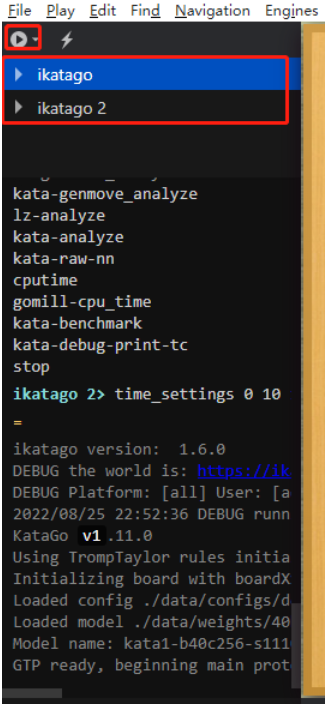
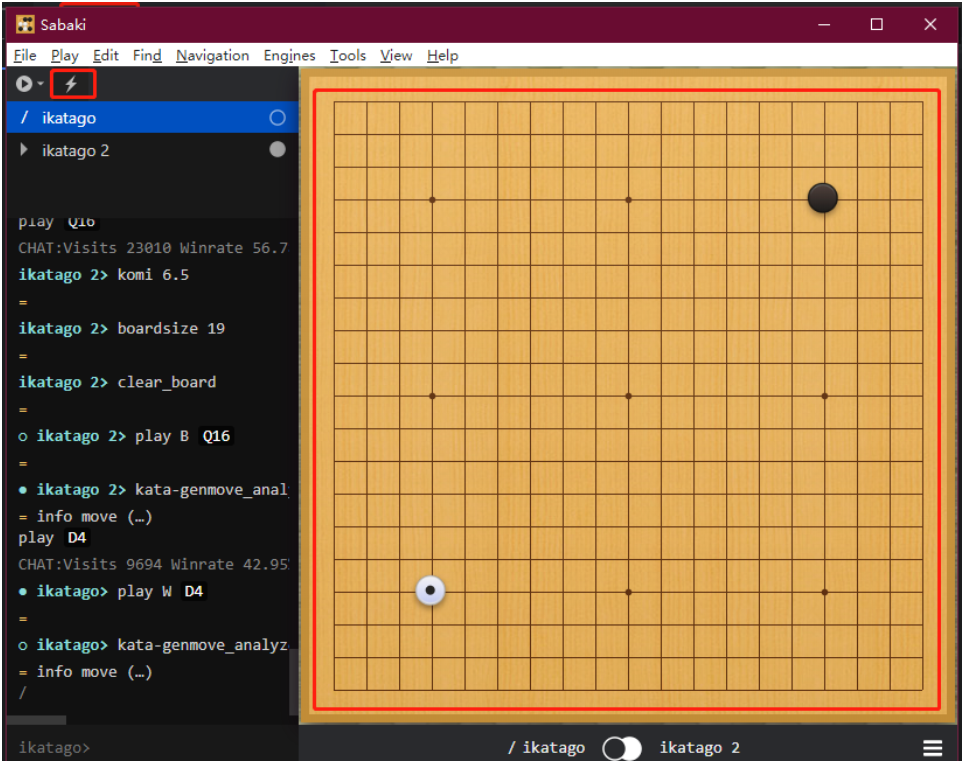
Start the game—it runs once every 10 seconds! image-20220826111849094