
WebCal
Ctrl K

ガイド

JetBrain Projector

ガイド連携FAQサポート
価格ブログ
クイックスタートTop-Up and BillingAccelerating Access to Academic ResourcesQuick StartIntroductionMaintenance and TroubleshootingNetwork
プラットフォームJetBrain ProjectorTmpWebCal Scholars Program @2026Introduction to the Public Beta/Suqian Zone AAbout UsCopying Data Between InstancesAnalysis of Server Performance MetricsTidal Computing PowerLoad Balancing
中国製チップUsing Huawei MindIEHuawei Ascend NPUMooreThread GPU
環境設定CUDA/cuDNNMinicondaPython3.XInstalling DependenciesOverviewImages
エンタープライズ機能Flexible DeploymentElastic Deployment Release NotesBest Practices for Elastic DeploymentPerformance Metrics Monitoring
コンテナインスタンスJupyterLabRemote SSH ConnectionSave the imageScaling ConfigurationMulti-machine, multi-GPU parallel processingDaemonOverviewChange the billing methodMigration Example (Same Region)Migration ExamplesRemote DesktopReset the system
GPU の選び方GPU SelectionPerformance Testing
データUpload DataDownload DataPublic DataPublic Cloud Storage (Highly Recommended)Compression / DecompressionFile StorageLocal data diskOverview
ベストプラクティスFileZillaGitGromacsHuggingFaceKataGoLinux BasicsMPIOpenCLPyCharm Remote DevelopmentR (RStudio) InstallationSSH TunnelTensorBoardRemote Development with VSCodeVisdomVulkanXShellOpen PortsWeChat MessagesPerformanceExpose multiple servicesMoney-Saving TipsComputation Precision IssuesSoftware Sources

プラットフォーム

JetBrain Projector

2026/07/3053227の閲覧数

Projector is another option for remote development with PyCharm. It does not require PyCharm Professional; all you need locally is a browser (though you can optionally install a client to connect). However, because it essentially transmits a video stream, it has high bandwidth requirements and suffers from significantly more lag than remote development using PyCharm and VSCode.

Install the Required Dependencies

Execute the following in the instance:

apt-get update && apt install -y less libxext6 libxrender1 libxtst6 libfreetype6 libxi6

Installing projector

Execute the following in the instance:

pip3 install projector-installer

Installing and Running PyCharm

Execute the following in the instance:

 # 安装,第一次安装默认会运行
 projector install pycharm

 # 运行
 projector run pycharm
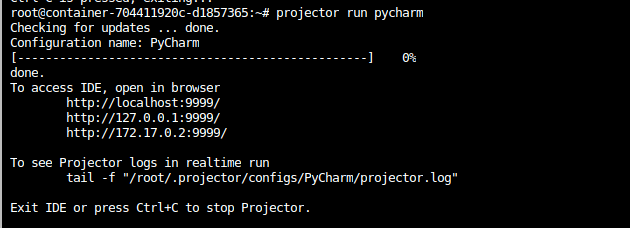
image-20211116165718559

Access the instance via SSH on port 9999

Run the following on your local computer:

ssh -CNg -L 9999:127.0.0.1:9999 root@region-1.webcal.com -p 43370. Replace the port "43370" after the -p parameter with the port specified in your instance's SSH instructions, and replace "region-1.webcal.com" with the address specified in your instance's SSH instructions.

Open PyCharm in a local browser

Access: http://localhost:9999/

You can also use the official Native App client to connect to a remote Projector: https://lp.jetbrains.com/projector/
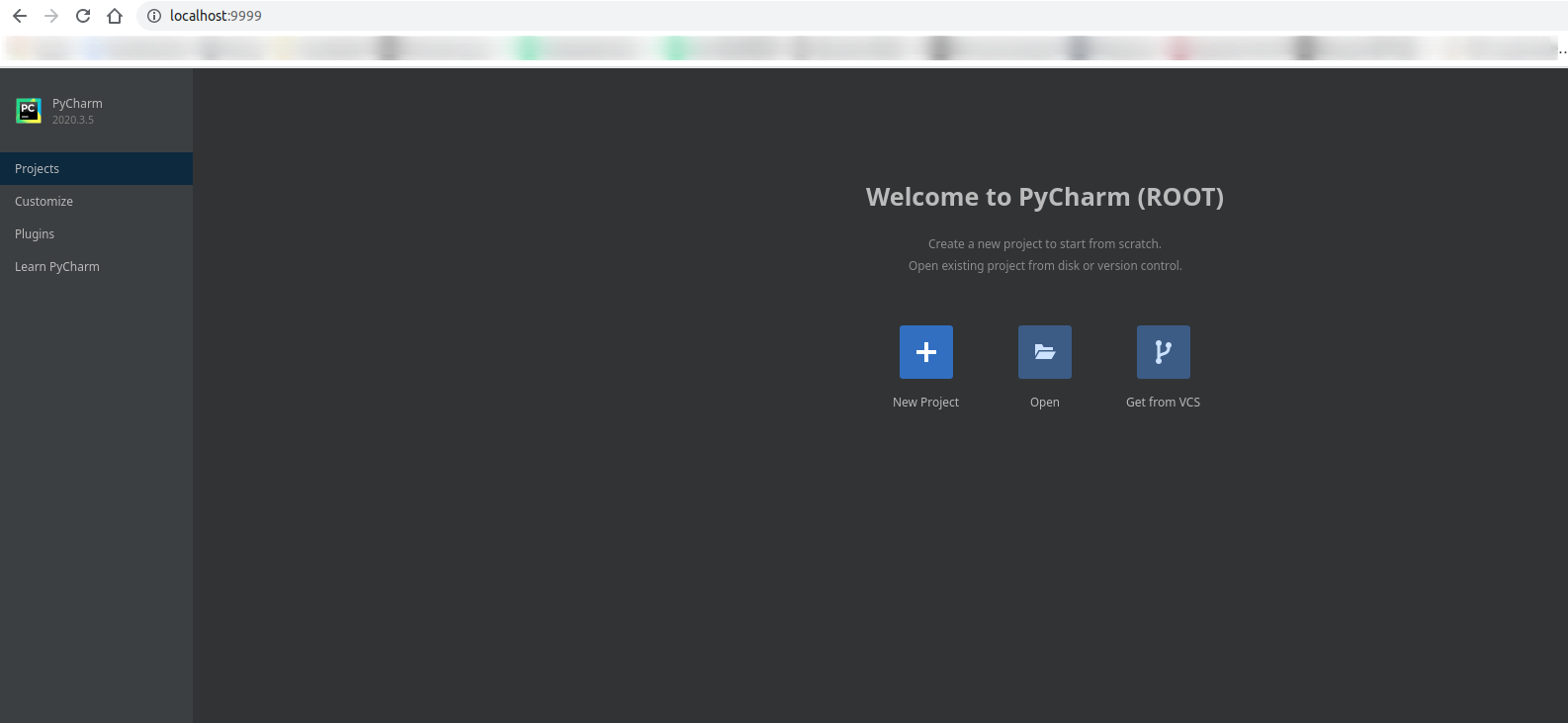
image-20211116170031803

次の記事Miniconda
コンピューティングレンタルに関するドキュメントガイドに戻る