
データ
Download Data
- JupyterLab allows you to download files but not folders; the advantage is that it is simple and easy to use.
- Public Cloud Storage (Highly Recommended)—use Alibaba Cloud Drive, Quark Cloud Drive, Baidu Netdisk, or OSS to directly upload and download data.
- The
scpcommand supports both files and folders, but since it is executed from the command line, it can be a bit more challenging to get started with. - FileZilla supports files and folders; simply drag and drop to upload or download. Recommended.
Jupyterlab
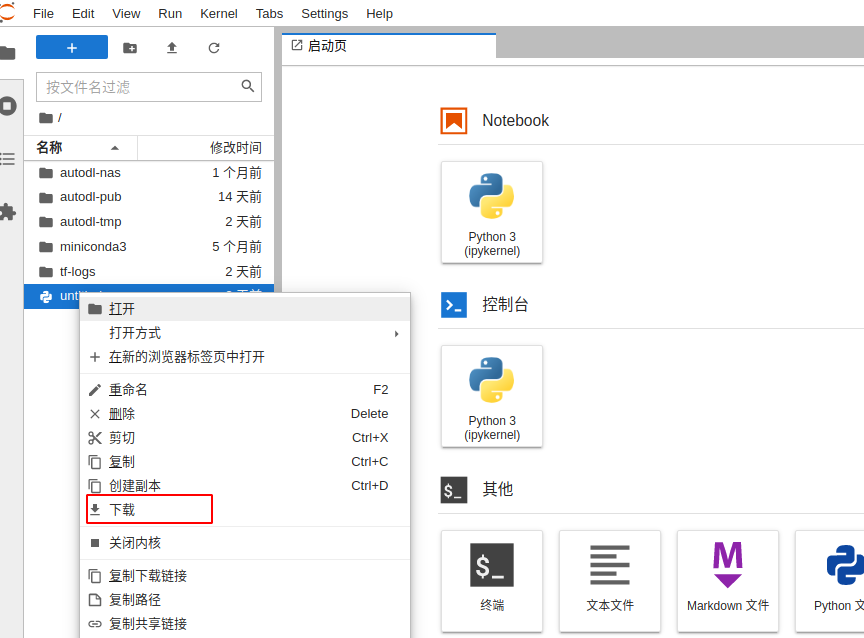
Select the file, right-click, and choose "Download" from the menu.
scp command
⚠️ The commands below must be executed on your local machine, not within an instance;
If you are a Windows user, note that the default Windows system does not include an SSH client. We recommend downloading and using Cmder, a tool that requires no installation—simply unzip and use.
Copy your SSH login command, which should be formatted as follows: ssh -p 35394 root@region-1.webcal.com (Note that 35394 is the port number and region-1.webcal.com is the remote address; please replace these with your instance’s port and address.)
⚠️The parameter in the command below is
-rP, not-rp
The command to download files remotely using SCP is: scp -rP 35394 root@region-1.webcal.com:<实例中的文件/文件夹> <本地文件/文件夹> (Note: This must be executed on your local machine.)

FileZilla
See FileZilla