
コンテナインスタンス
Daemon
If you are remotely executing programs via SSH or SSH-based tools (such as XShell, PyCharm,VSCode, etc.—you can use these tools for debugging, but when running programs for extended periods, please execute commands as a daemon process) to run programs remotely, be sure to run the program as a daemon process to prevent it from terminating due to an interrupted SSH connection and to avoid unnecessary losses.
There are several ways to run your program via a daemon
screen. Additionally, there are commonly used tools such astmux(to install, run:apt-get update && apt-get install -y tmux), which will not be covered here.- Terminal for
jupyterlab - If you are using a Notebook, please refer to the bottom of the JupyterLab documentation for information on log updates when the Notebook loses its internet connection.
Jupyterlab
The easiest way is to run it through the JupyterLab terminal. As long as JupyterLab does not restart (which almost never happens), the JupyterLab terminal will continue to run, even if the local host loses its internet connection or is shut down.
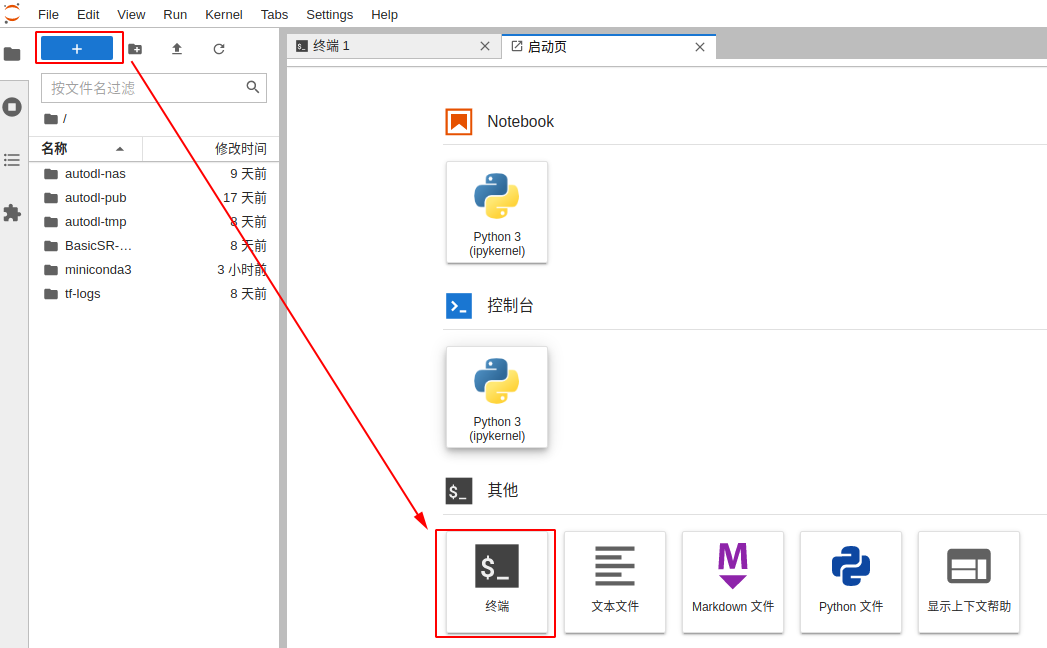
If you close this terminal tab, you can find it again in the left sidebar.
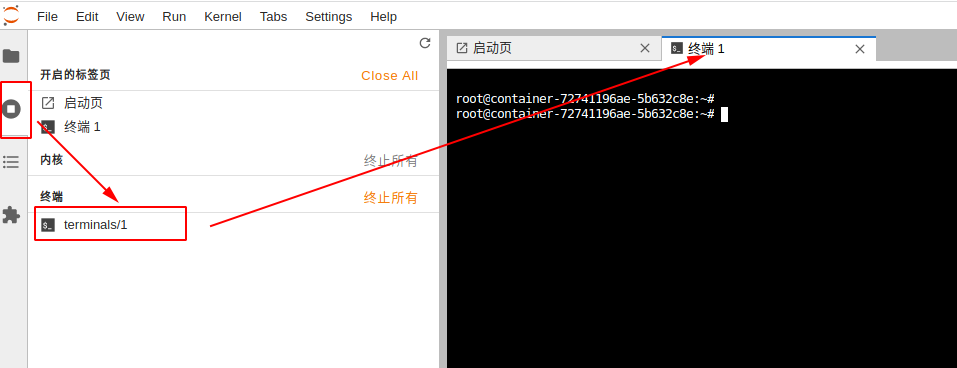
If the terminal does not display anything when you open it, simply press the Enter key. When running code in JupyterLab for an extended period, it is strongly recommended that you redirect logs to prevent the loss of intermediate logs in the event of a network outage. Instructions:
# 日志重定向到train.log文件。即在你的命令后加上:> train.log 2>&1
python xxx.py > train.log 2>&1
# 实时查看日志
tail -f train.log
screen
To install Screen, run the following command in the terminal: apt-get update && apt-get install -y screen
How to use:
Create a New Session
Execute the command screen in the terminal, then press Enter on the screen that appears. This will bring up a terminal that looks exactly like the previous one (there are actually two).
Any programs executed in this terminal are protected by this session. For example, if you run the following command here:
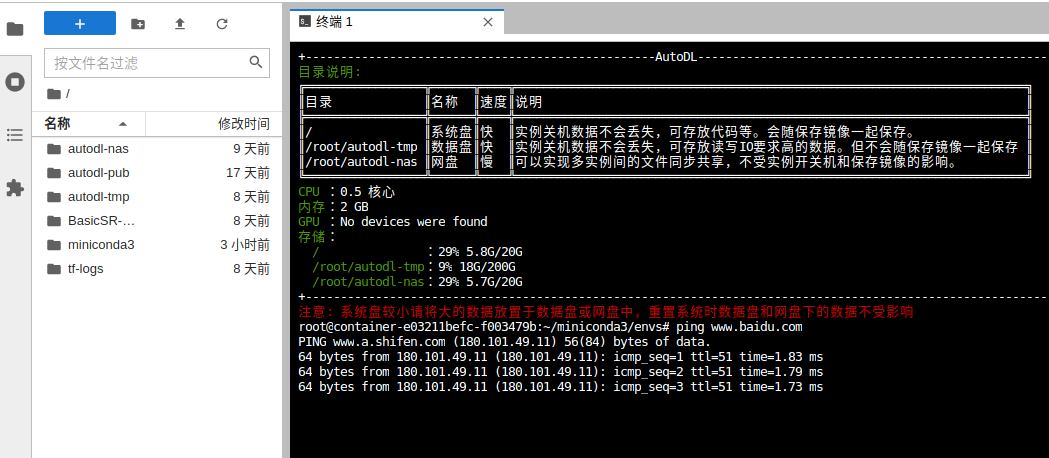
If you encounter garbled Chinese characters after opening a terminal with screen, run the following command and then re-enter the screen terminal:
echo "defencoding GBK" >>  ~/.screenrc
echo "encoding UTF-8 GBK" >>  ~/.screenrc
Log out of the session
In a terminal opened with screen, using the shortcut ctl + a + d will return you to the original terminal and display "detached," indicating that the session has been detached but not terminated.
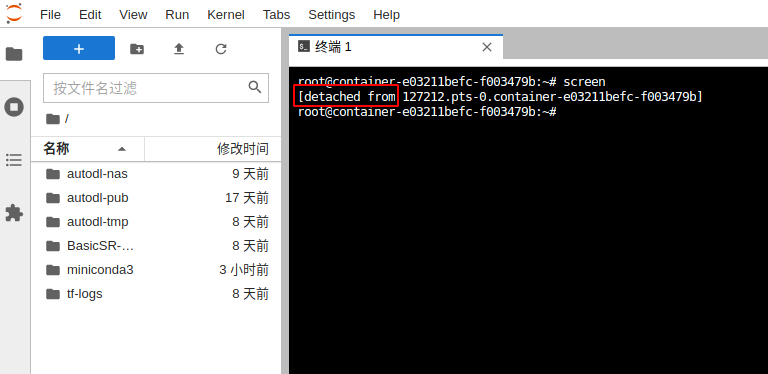
Re-enter the session
First, find all disconnected sessions:
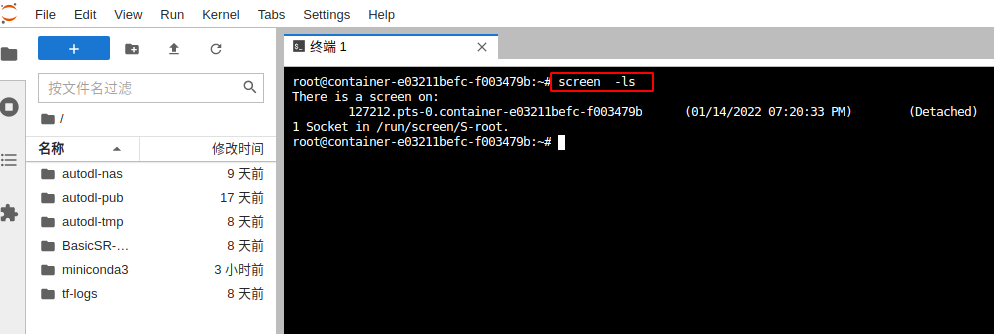
Then restore them to the corresponding session:
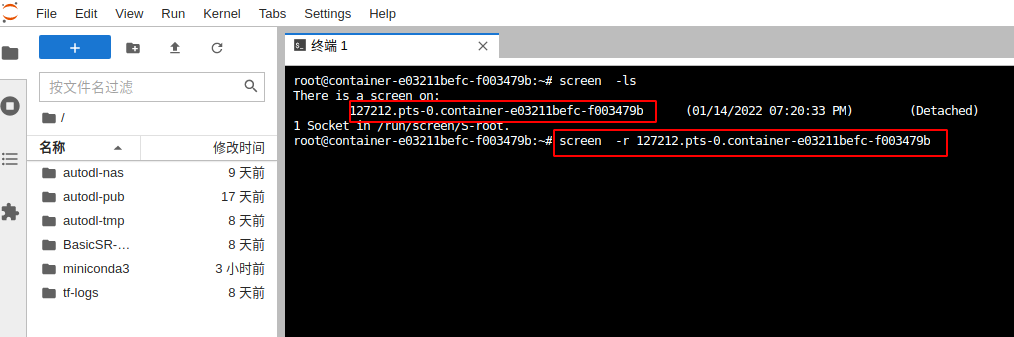
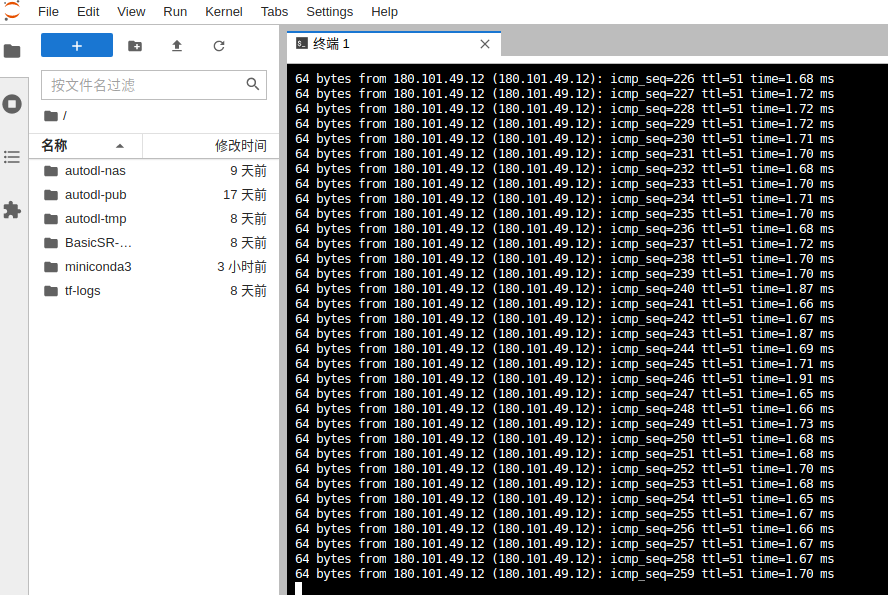
After running the above commands, you’ll notice that the initial command ping www.baidu.com is still running. Therefore, you can run your program in a screen session, detach from the session, and then reattach to it when you need to check the logs.
Roll Back Session
In a terminal opened with screen, use the shortcut: ctl + d. If there are any running programs, first use ctrl + c to terminate them.
Screen Character Encoding Issues
Simply add the -U parameter, for example:
新建:screen -U
恢复:screen -U -r xxx