
データ
File Storage
Files are stored on network-shared storage and can be mounted on different instances within the same region. Compared to local data disks, this approach has both advantages and disadvantages:
Advantages: Data is shared across instances, allowing read/write access from multiple locations, and is not affected by instance termination; furthermore, the storage backend maintains multiple redundant copies, ensuring very high data reliability (local data disks have no redundant backups, so there is a certain probability of disk failure affecting the data).
Disadvantages: Average I/O performance.
Considering the pros and cons above, the recommended approach is as follows: Store important data or code in file storage, which is shared across all instances, ensuring both convenience and data reliability; during training, copy data requiring high I/O performance (such as training data) to the instance’s local data disk first, and read data from the local disk to achieve better I/O performance.This approach balances convenience, security, and performance.
Initialization
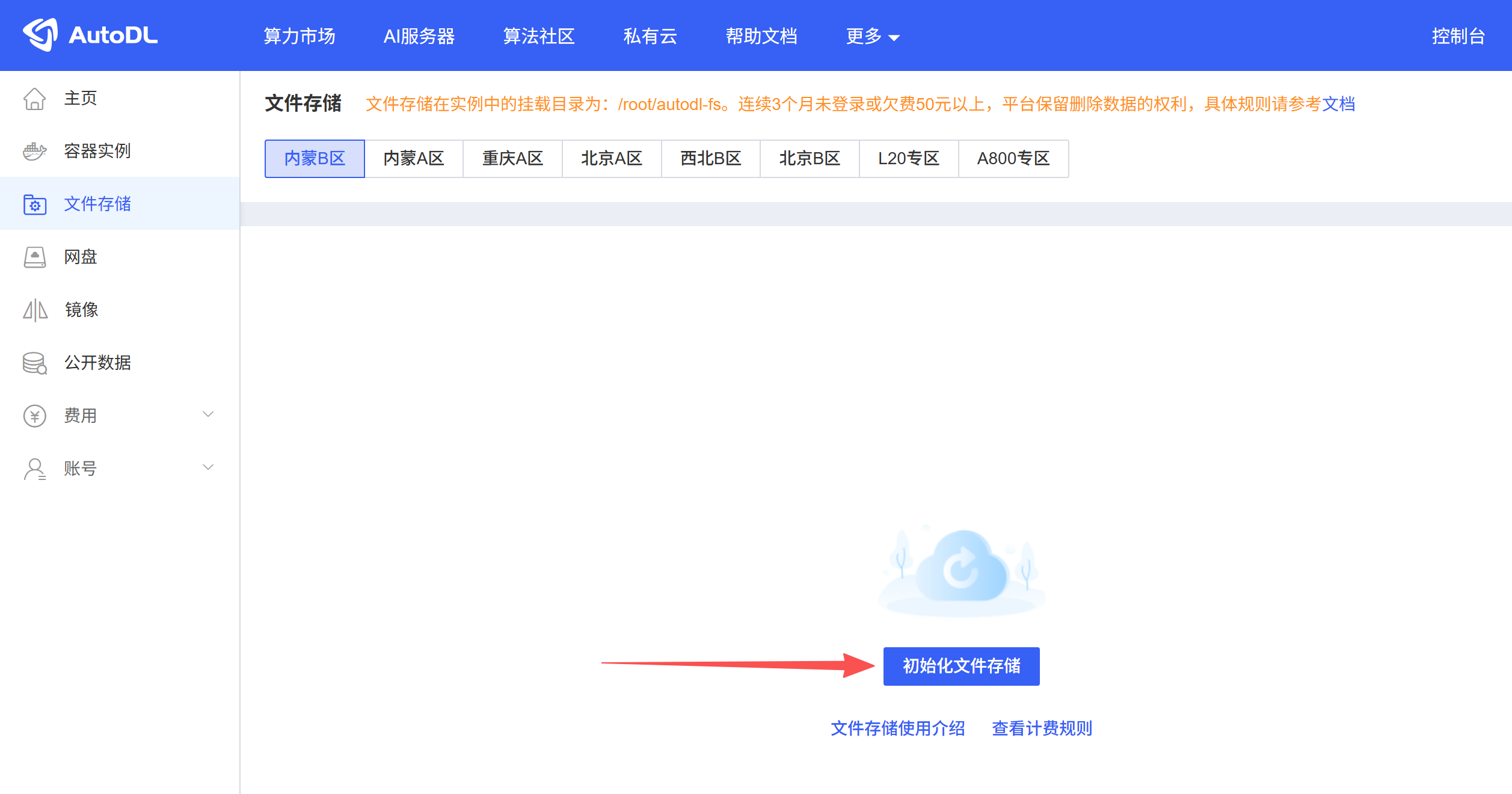
Go to the “Console” > “File Storage” menu to initialize file storage for the corresponding region. After creating and starting an instance in that region, the file storage will be mounted to the instance’s /root/webcal-fs directory. For instances that are already running, the file storage will be automatically remounted after a reboot.
Billing Rules
Pricing is based on actual usage, with usage under 20 GB free of charge.
Billing rate: ¥0.01/GB/day
Billing Rules: The system will use the maximum capacity utilized on a given day (calendar day) as the billing basis. The fee for usage exceeding the free 20 GB capacity (yuan/day) = excess capacity (GB) × 0.01 yuan/GB/day. Fees are deducted at midnight the following day for the previous day’s usage.If usage exceeds the free quota, the minimum charge is 0.01 yuan.
Total storage capacity: The default for a single user is 200 GB. Please contact customer service if you need more storage.
File storage not mounted in the instance
- Check whether instances in this region support file storage;
- Check whether this section of the file storage interface has been initialized;
- If the instance is powered on before file storage is initialized, you must restart the instance;
- Check the mounting status under “Console” > “Account” > “Settings” > “File Storage.” If mounting is stopped, you must remount the storage and then restart the instance;
- If the instance was created by a sub-account, check whether the sub-account has file storage permissions: “Console” > “Accounts” > “Sub-accounts” > “Set Permissions” > “File Storage”;
- If you are still unable to mount the drive, please contact customer service for assistance.
Cache Cleanup
When a web upload is interrupted or a file is deleted in JupyterLab, cached files or trash bin entries may be generated, taking up file storage space.
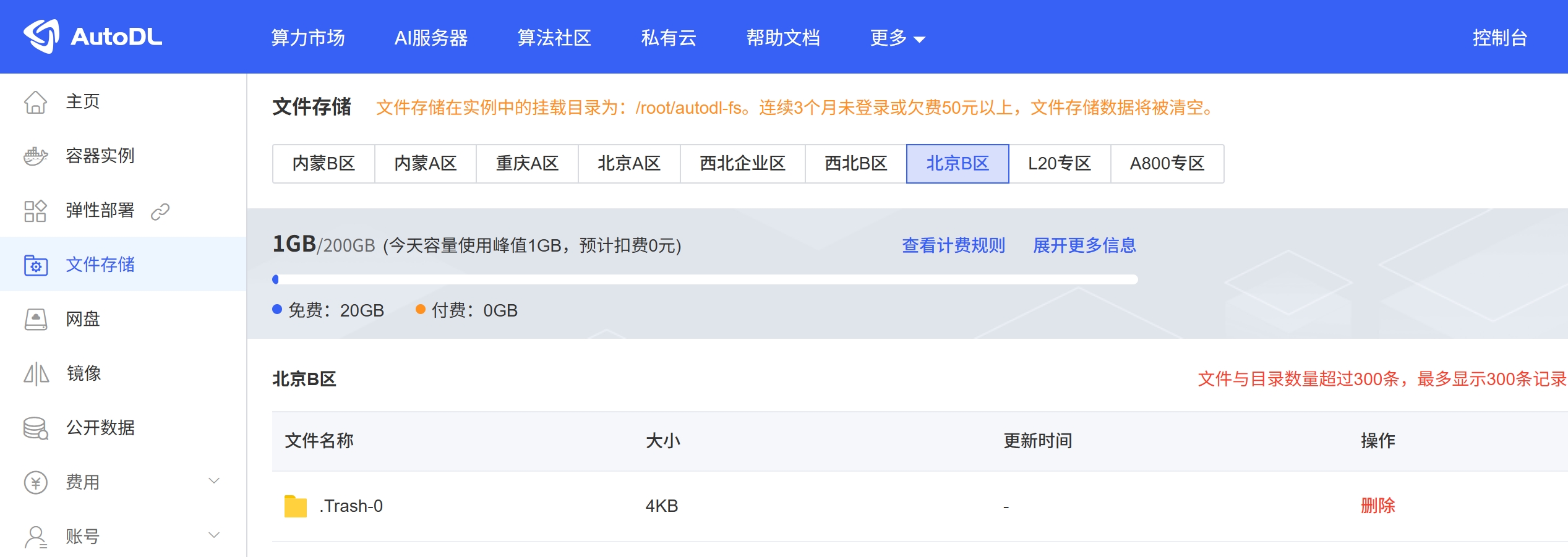
Solution 1:
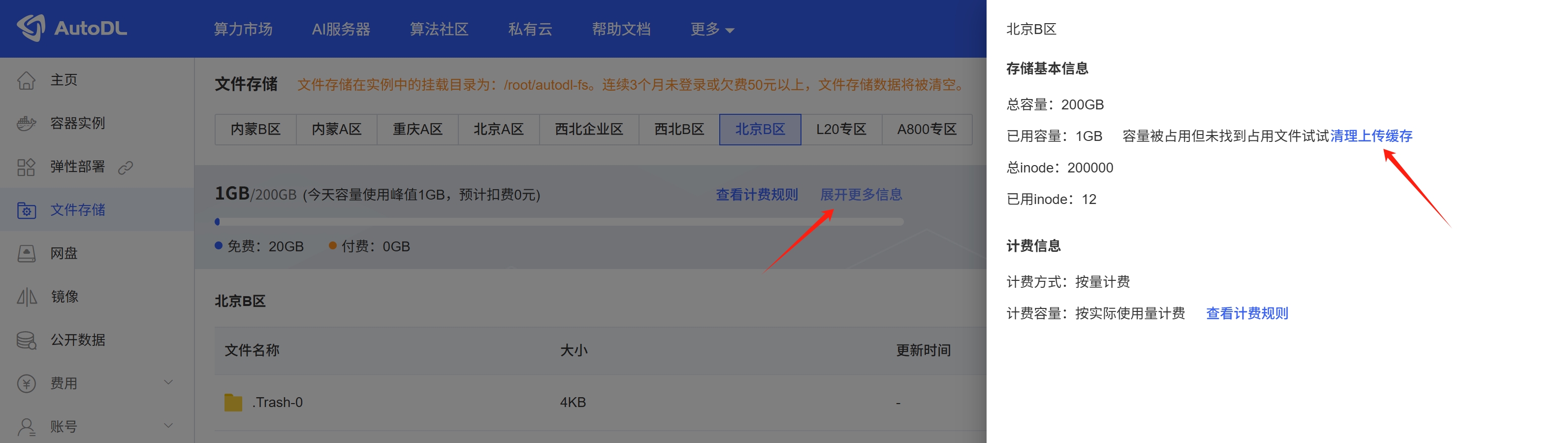
"Console" -> "File Storage" -> "Show More Details" -> "Clear Upload Cache"
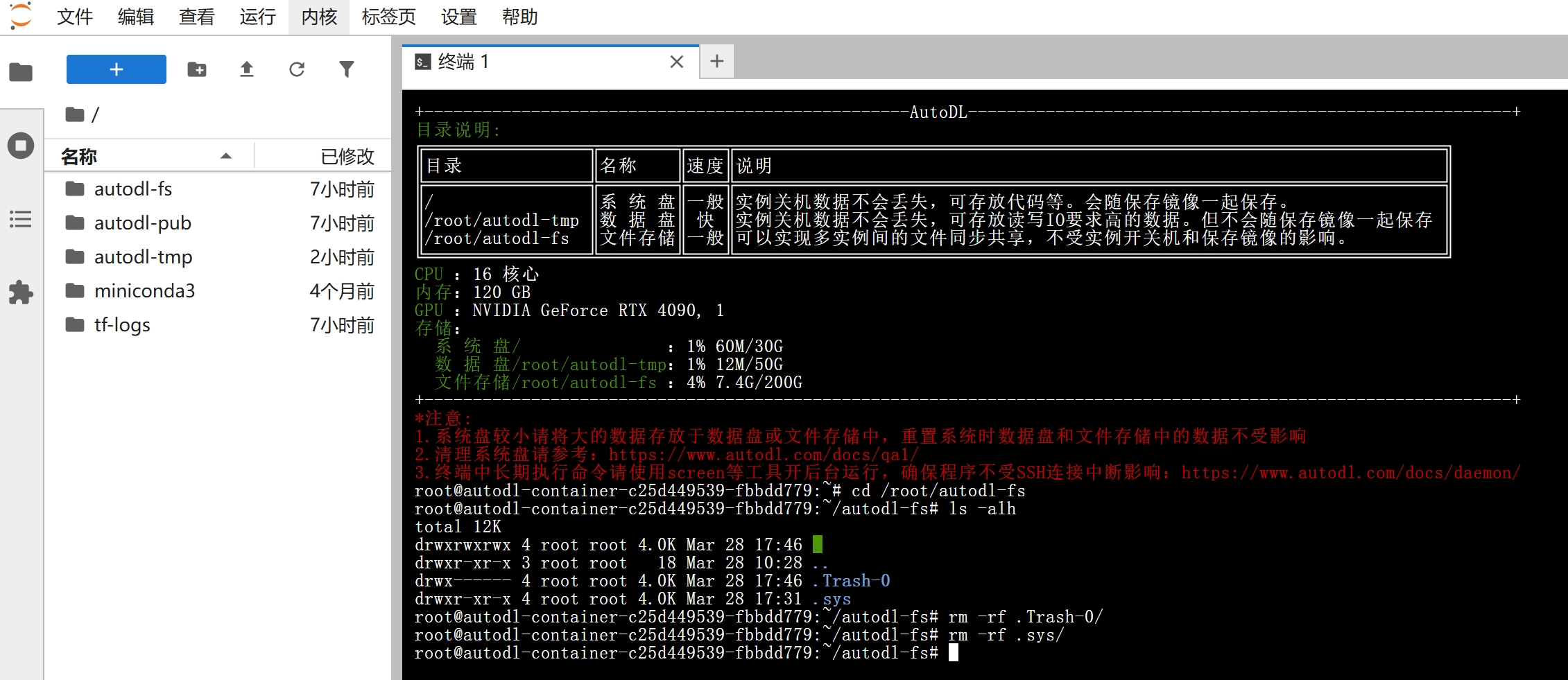
Solution 2:
You can navigate to /root/webcal-fs from the terminal, use ls -alh to view hidden files, and then use rm to permanently delete them.
Disk space is sufficient, but an "disk full" error is reported
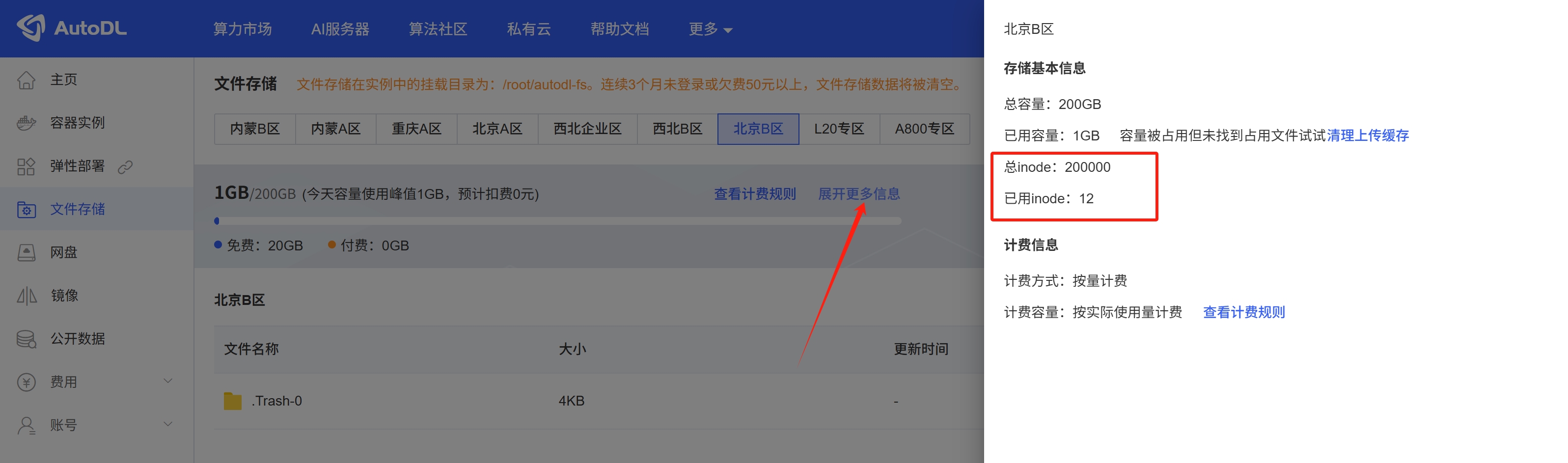
The upper limit for the number of files (inodes) in File Storage is 200,000. If the number of files (inodes) exceeds 200,000, a "disk space insufficient" error will be reported. Since small files significantly impact read and write speeds, it is recommended to compress them before storing them in File Storage; small files should be kept on the data disk for use. You can view the file count (inodes) usage by navigating to “Console” > “File Storage” > “Expand for More Information.”
Data Cleaning
If an account has not been logged into for three consecutive months or has an outstanding balance of 50 yuan or more, the stored data will be deleted.