WebCal
Ctrl K

मार्गदर्शिका

Visdom

मार्गदर्शिकाएकीकरणसामान्य प्रश्नसहायता
मूल्यब्लॉग
त्वरित प्रारंभTop-Up and BillingAccelerating Access to Academic ResourcesQuick StartIntroductionMaintenance and TroubleshootingNetwork
प्लेटफ़ॉर्मJetBrain ProjectorTmpWebCal Scholars Program @2026Introduction to the Public Beta/Suqian Zone AAbout UsCopying Data Between InstancesAnalysis of Server Performance MetricsTidal Computing PowerLoad Balancing
घरेलू चिप्सUsing Huawei MindIEHuawei Ascend NPUMooreThread GPU
परिवेश सेटअपCUDA/cuDNNMinicondaPython3.XInstalling DependenciesOverviewImages
एंटरप्राइज़ सुविधाएँFlexible DeploymentElastic Deployment Release NotesBest Practices for Elastic DeploymentPerformance Metrics Monitoring
कंटेनर इंस्टेंसJupyterLabRemote SSH ConnectionSave the imageScaling ConfigurationMulti-machine, multi-GPU parallel processingDaemonOverviewChange the billing methodMigration Example (Same Region)Migration ExamplesRemote DesktopReset the system
GPU चुननाGPU SelectionPerformance Testing
डेटाUpload DataDownload DataPublic DataPublic Cloud Storage (Highly Recommended)Compression / DecompressionFile StorageLocal data diskOverview
सर्वोत्तम अभ्यासFileZillaGitGromacsHuggingFaceKataGoLinux BasicsMPIOpenCLPyCharm Remote DevelopmentR (RStudio) InstallationSSH TunnelTensorBoardRemote Development with VSCodeVisdomVulkanXShellOpen PortsWeChat MessagesPerformanceExpose multiple servicesMoney-Saving TipsComputation Precision IssuesSoftware Sources

सर्वोत्तम अभ्यास

Visdom

30/07/202634811 व्यू

Methods for SSH Tunnels

  1. Start visdom on the instance (it listens on port 8097 by default)

  2. In the terminal on your local computer, run the command: ssh -CNgv -L 8097:127.0.0.1:8097 root@region-1.webcal.com -p 37881. Here, 8097:127.0.0.1:8097 refers to port forwarding from port 8097 on the Visdom Server to port 8097 on your local machine, while root@region-1.webcal.com and 37881 are the access address and port for the SSH command in the instance, respectively. Please substitute the appropriate values.

Note: It is normal for no logs to appear after executing the SSH command above, as long as you are not prompted to re-enter your password or the session does not terminate.
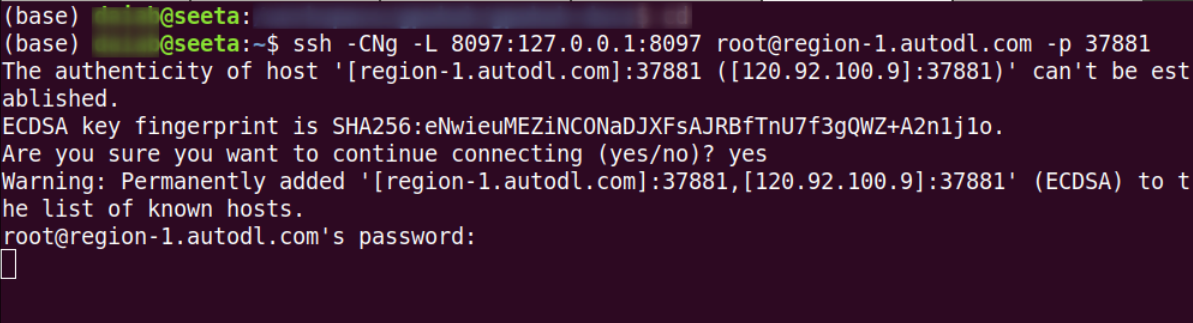
image-20221117105400658

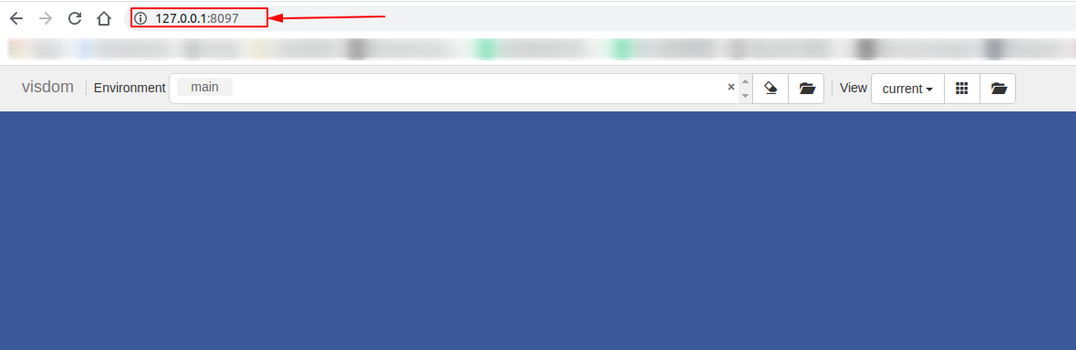
  1. Open Visdom by visiting 127.0.0.1:8097 in your local browser.

image-20221117105431465

Custom Service Methods

Start an instance and locate the “Custom Services” entry point
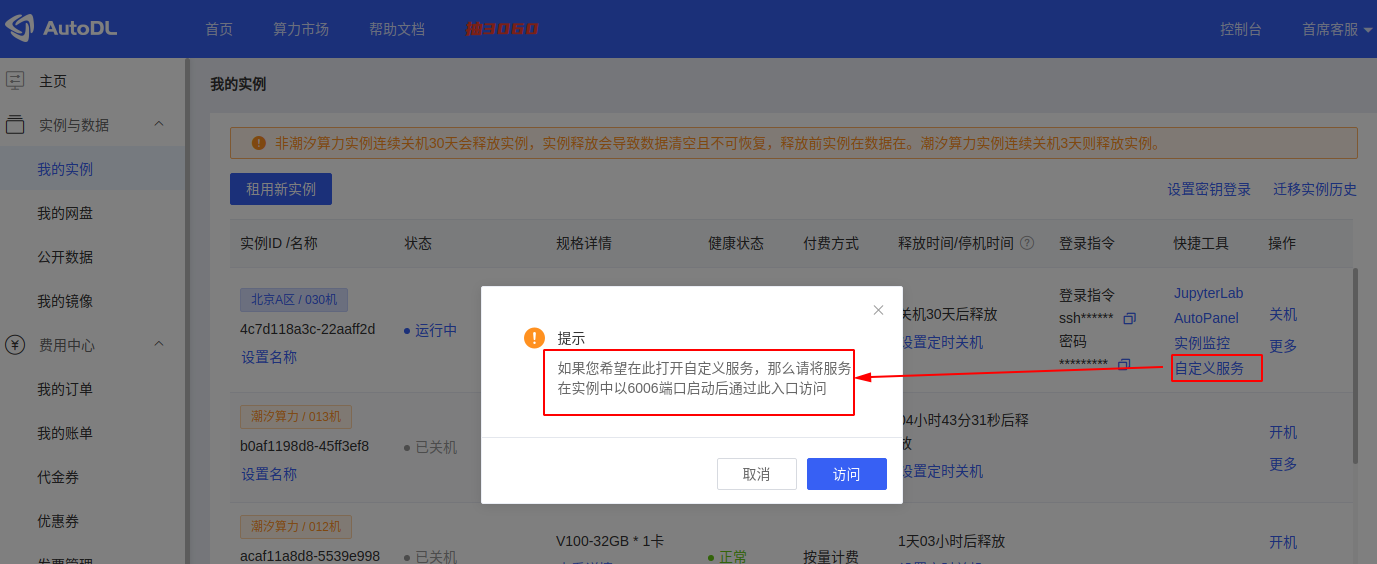
image-20220401155740569

As indicated in the prompt, we simply need to start Visdom on port 6006 to access it via the “Custom Services” entry point:

Start Visdom on the instance and specify port 6006

# 如果没有安装visdom,请先执行pip install visdom安装
# visdom -port 6006
Checking for scripts.
It's Alive!
INFO:root:Application Started
You can navigate to http://container-7e5111bf0c-8a82bc6b:6006

Additionally, since the Visdom client uses the original port by default when connecting to the Visdom server, the following modification must be made when constructing the Visdom object in the client code:

vis = Visdom(server='http://localhost', port='6006', env='main')

After startup, access the custom service in your local browser
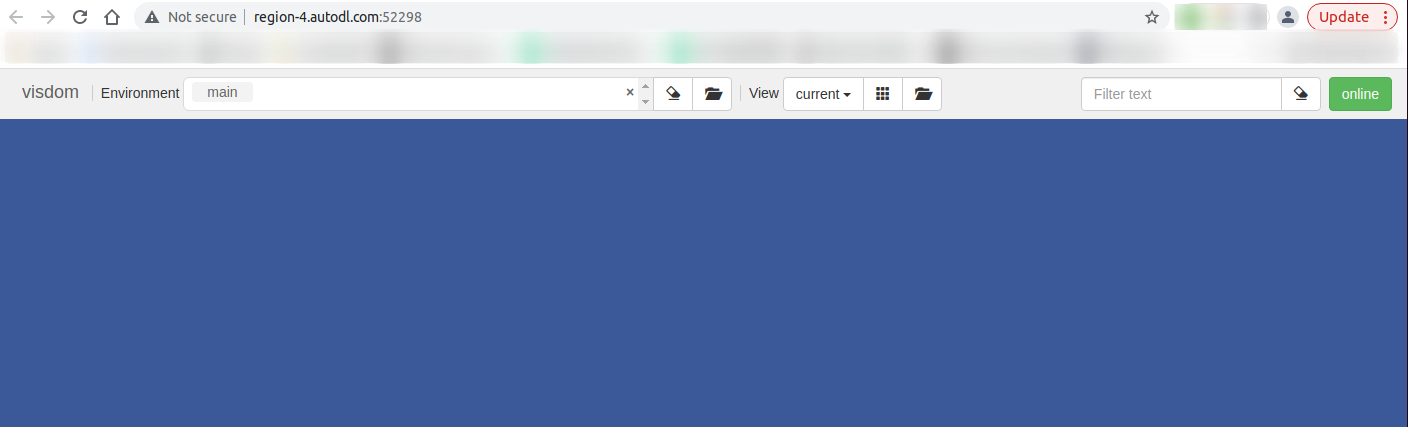
image-20220401160337985

अगला लेखVulkan
Compute Rental दस्तावेज़मार्गदर्शिका पर वापस जाएं