
डेटा
Upload Data
- Public Cloud Storage—use Alibaba Cloud Drive, Quark Cloud Drive, Baidu Netdisk, or OSS to directly upload and download data; highly recommended.
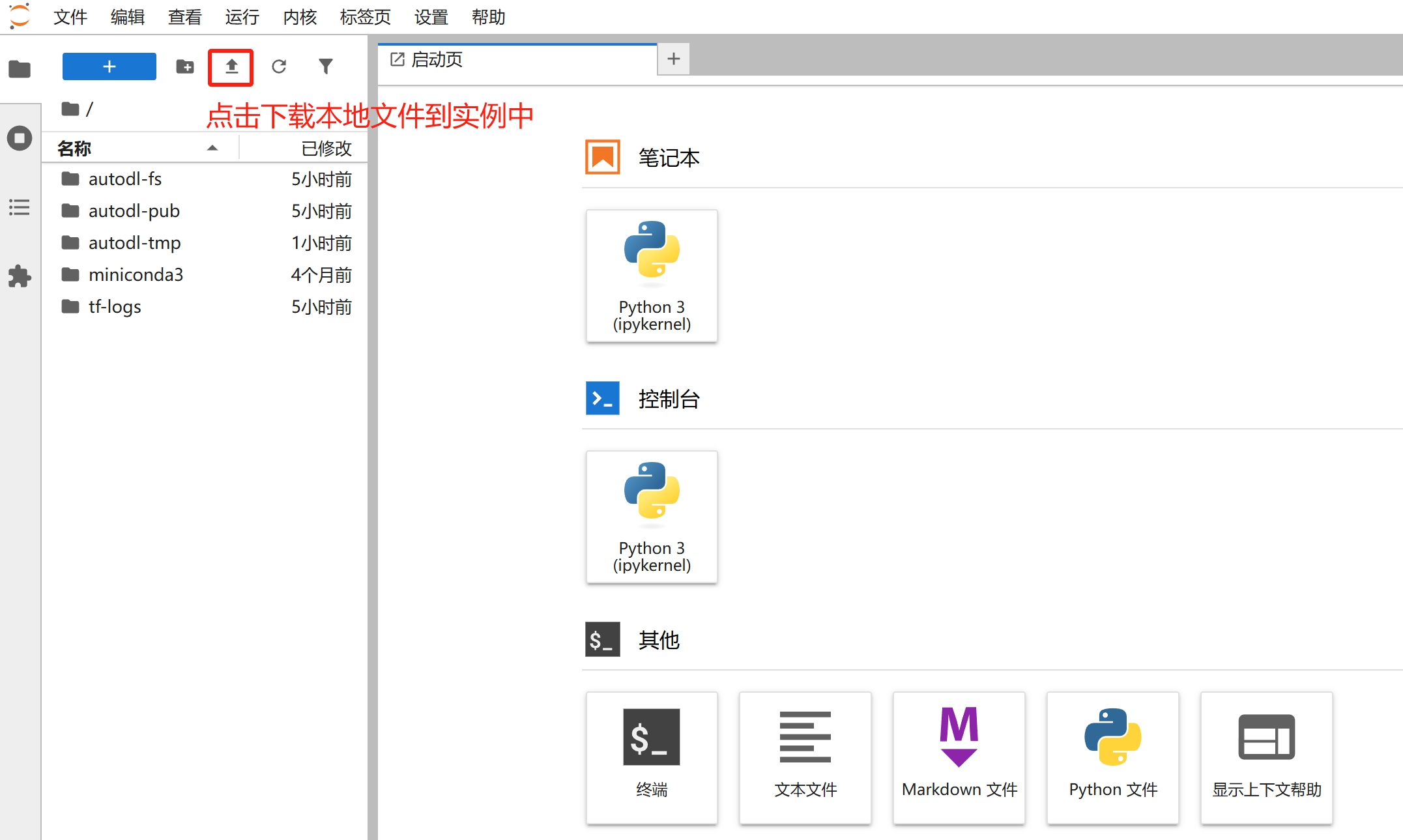
- JupyterLab upload—similar to cloud storage services. The advantage is its simplicity, but it only supports files, not folders.
- The
scpcommand supports uploading and downloading files and folders; however, since it is executed via the command line, it can be slightly more difficult to get started with. - FileZilla supports files and folders; simply drag and drop to upload or download. Recommended.
- XShell is a software tool that supports managing SSH connections and is integrated with XFTP, allowing you to drag and drop folders and files for uploading and downloading. Highly recommended.
- Upload data to WebCal File Storage. The advantage is that it’s simple and doesn’t require launching an instance; the disadvantage is that the web interface doesn’t support uploading folders.
Uploading via File Storage
See the File Storage section.
Uploading Data to JupyterLab
SCP Remote Copy
Note that the instructions below must be executed on your local machine to copy data to the instance—do not run the command on the instance itself;
If you are a Windows user, note that the default Windows system does not include an SSH client. We recommend downloading and using Cmder, a tool that requires no installation—simply unzip and use.
Copy your SSH login command, which should be formatted as follows: ssh -p 35394 root@region-1.webcal.com (Note that 35394 is the port number and region-1.webcal.com is the remote address; please replace these with your instance’s port and address.)
⚠️The parameter in the command below is
-rP, not-rp
The command to copy files remotely using SCP is: scp -rP 35394 <本地文件/文件夹> root@region-1.webcal.com:/root/webcal-tmp (Note: This must be executed on your local machine.)

If you are copying data from an instance to your local machine, the SCP command is: scp -rP 35394 root@region-1.webcal.com:<实例中的文件/文件夹> <本地文件/文件夹>
Advanced Usage
The method described above for directly copying folders via scp can be very slow if there are many small files. You can use the following method to copy a tar stream (provided the local computer has the tar command available):
cd <要拷贝的文件夹目录下>
tar cf - * | ssh -p 35394 root@region-1.webcal.com "cd /root/webcal-tmp && tar xf -"
FileZilla
See FileZilla
XShell
See XShell