
常見問題
JupyterLab won't open
Reason 1
If installing certain dependencies causes JupyterLab’s dependencies to be inadvertently upgraded or downgraded, affecting JupyterLab’s operation, you can log in to the instance via SSH and run the command jupyter-lab to verify. If the command returns an error, this confirms the issue. In that case, you can resolve it by reinstalling via pip install jupyterlab and then restarting the instance.
(If you are a Windows user, you can use cmd or PowerShell to log in via SSH, but you may not be able to paste your password normally; you will need to enter it manually)
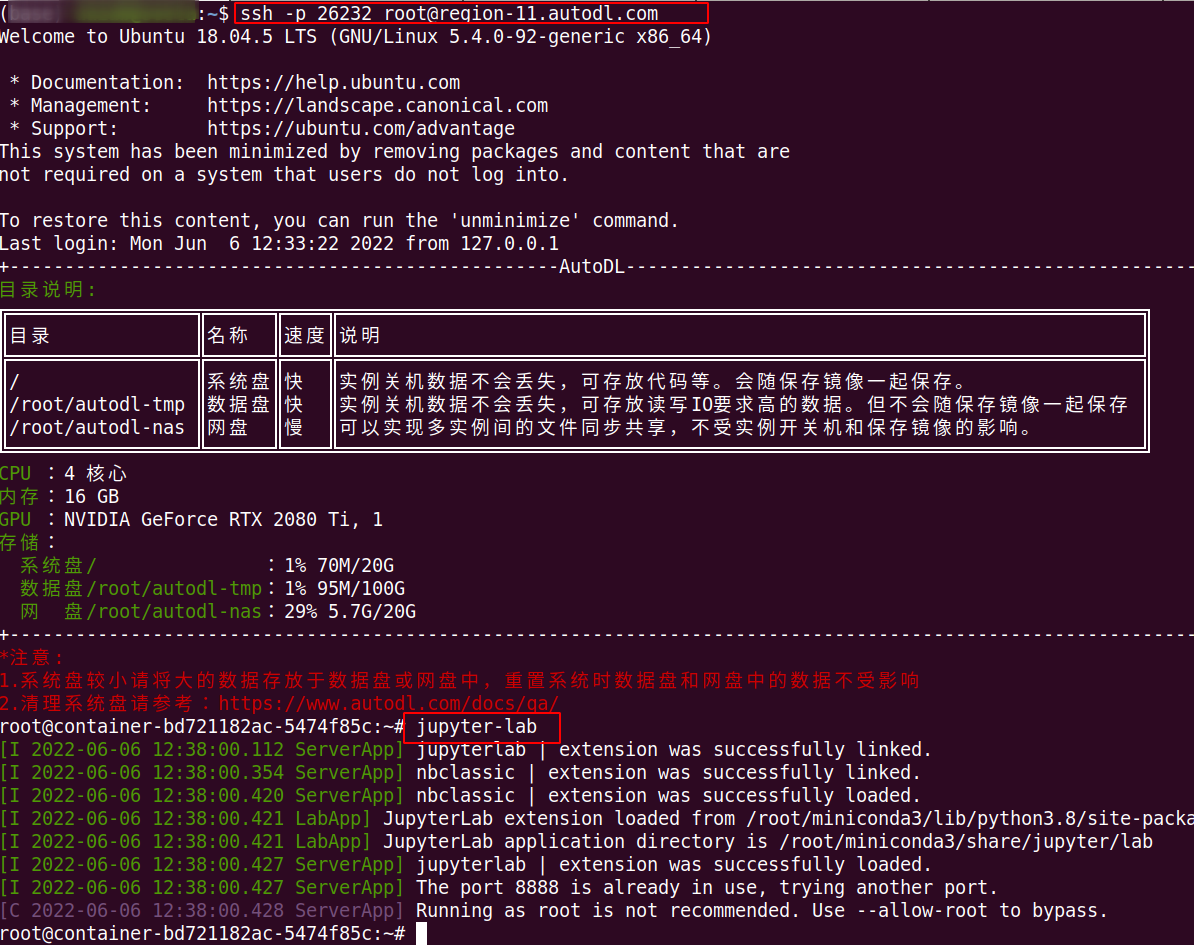
If you see the output above after entering jupyter-lab, it means JupyterLab is working properly. If you encounter an error similar to the one below, JupyterLab cannot start.
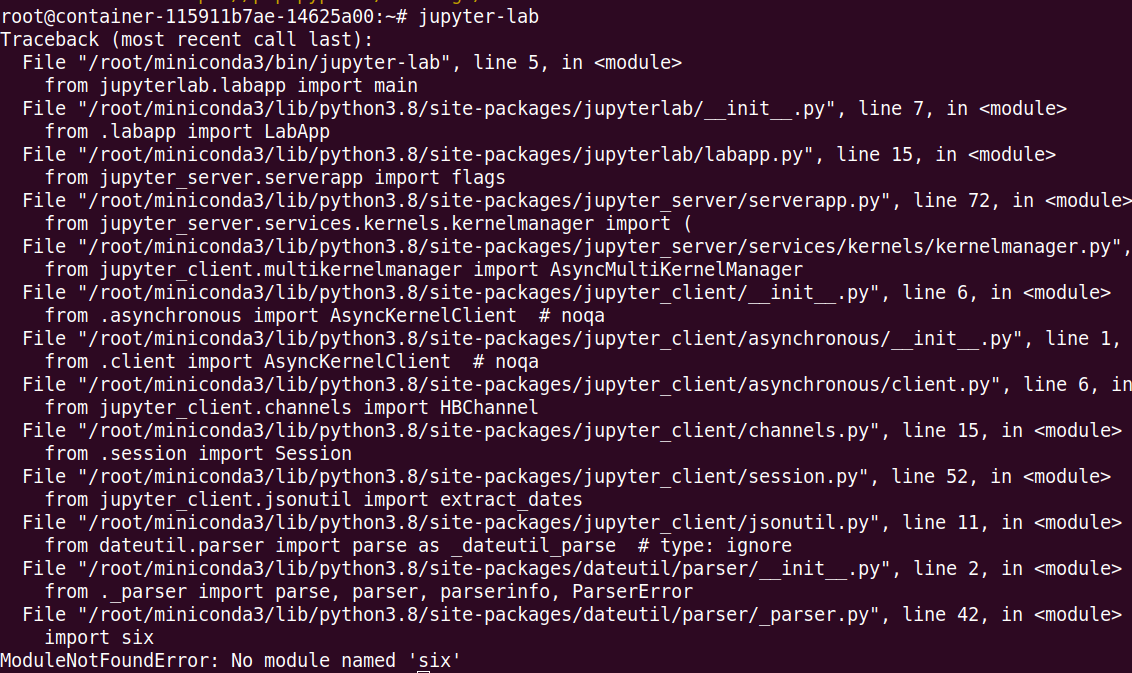
If JupyterLab fails to start, simply reinstall it (if the pip command is missing, run conda install pip first; if the conda command is missing, you may have deleted Miniconda—the simplest solution is to reset the system):
Step 1: Uninstall the current JupyterLab: pip uninstall jupyterlab
Step 2: Reinstall: pip install jupyterlab

Reason #2
If the first cause is ruled out, the issue is most likely a network problem—specifically, a VPN using a proxy (FQ) that restricts access to JupyterLab addresses with specific ports.
In this situation, you can usually see the JupyterLab icon on the webpage, but the page fails to load and displays a blank screen.

Solution:
- Disable the VPN and test whether you can access the site normally.
- If you are still unable to access the platform after turning off the VPN, you will need to turn the VPN back on and set it to Direct Connection Mode.If your VPN does not have a "Direct Connection" mode, select PAC mode; do not select Global mode (some VPNs may still affect the system’s network even when turned off). The image below shows the settings for a specific VPN on Mac and another on Windows:


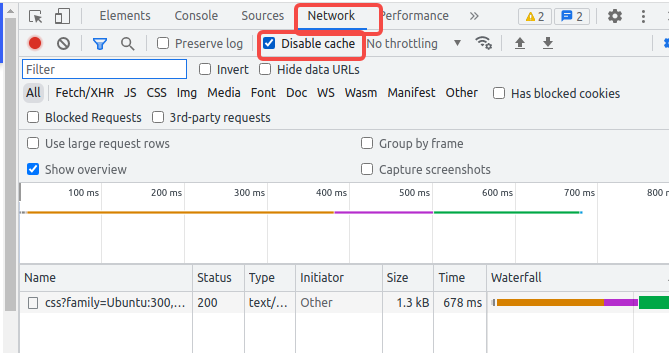
- If you are still unable to open the page after configuring the direct VPN connection as described above, press [F12] in the JupyterLab browser window -> select "Network" -> check "Disable cache," then refresh the page.
- The last resort: Switch browsers.
Reason #3
Some campus networks restrict access to certain ports. If you are using a campus network, you can try switching to a non-campus network, such as connecting to a mobile hotspot.
If the above does not resolve the issue, please contact customer service for assistance.