
常見問題
SSH Connection Errors
- If you encounter issues with SSH-based connections using VSCode, PyCharm, or similar tools, please troubleshoot and resolve them as follows:
- If you encounter connection issues when using XShell or MobaXterm, please refer to the documentation; there is no need to continue reading the troubleshooting steps below.
Troubleshooting and Resolution
Possible causes:
- If the instance’s system disk is reset or the image is replaced, the SSH fingerprint will change, resulting in an error when connecting via SSH: “
REMOTE HOST IDENTIFICATION HAS CHANGED” - If the permissions on the local SSH config file are incorrect, an error will occur because the configuration cannot be written during the SSH connection (this could also apply to other files).
- When VSCode connects to addresses on the same host (but different ports), the config information it writes cannot distinguish between the different instance addresses, resulting in failed connections due to incorrect connections.
Troubleshooting steps:
Step 1: First, troubleshoot the first two possible causes. If you are a Windows user, search for "powershell" in the Start menu; if you are a Mac user, search for "terminal." In PowerShell or Terminal, enter the instance’s full SSH command and press Enter. If the connection is successful, the following information will appear:

All of the above can be verified to be working properly; there is no need to proceed to the next step of entering a password. At this point, you can refer to Step 2 to troubleshoot issues with VSCode, PyCharm, or similar tools. If the following error message appears and the SSH session terminates:
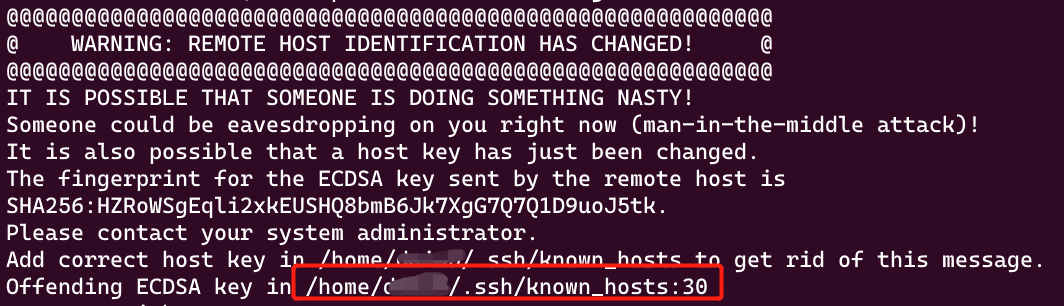
In addition to the error messages listed above, there may also be:
Bad owner or permissions on C:\Users\USER\.ssh\config
和
Load key "C:\Users\USER\.ssh\id_rsa": bad permissions
The solution is as follows: Delete the files mentioned in the error message—known_hosts and config (these are local files, and the paths may vary for each user). If the issue is related to RSA key permissions, Windows users should set the key permissions to read-only; Linux/Mac users should run the command chmod 600 rsa文件.
Step.2
VSCode Connection Error
The most common cause is a HOST conflict, such as in the following scenario: If you rent two instances, A and B, in the same region, and since A and B have the same HOST name but different ports, the HOST aliases written in the VSCode ssh/config file will be identical.When instance A is shut down and instance B is running, attempting to connect to instance B causes VS Code to mistakenly connect to instance A, resulting in a connection failure. The quick-and-dirty solution for this scenario is to delete the C:\Users\USER\.ssh\config file; the more elegant approach is to edit the config file, modify the Host field (the host alias), and then reconnect.
PyCharm Connection Error
Since PyCharm’s implementation is complex and no additional logs are visible externally, troubleshooting must be based on the error messages.