
WebCal
Ctrl K

Guía

Download Data

GuíaIntegracionesFAQSoporte
PreciosBlog
Inicio rápidoTop-Up and BillingAccelerating Access to Academic ResourcesQuick StartIntroductionMaintenance and TroubleshootingNetwork
PlataformaJetBrain ProjectorTmpWebCal Scholars Program @2026Introduction to the Public Beta/Suqian Zone AAbout UsCopying Data Between InstancesAnalysis of Server Performance MetricsTidal Computing PowerLoad Balancing
Chips nacionalesUsing Huawei MindIEHuawei Ascend NPUMooreThread GPU
Configuración del entornoCUDA/cuDNNMinicondaPython3.XInstalling DependenciesOverviewImages
Funciones empresarialesFlexible DeploymentElastic Deployment Release NotesBest Practices for Elastic DeploymentPerformance Metrics Monitoring
Instancias de contenedorJupyterLabRemote SSH ConnectionSave the imageScaling ConfigurationMulti-machine, multi-GPU parallel processingDaemonOverviewChange the billing methodMigration Example (Same Region)Migration ExamplesRemote DesktopReset the system
Elegir una GPUGPU SelectionPerformance Testing
DatosUpload DataDownload DataPublic DataPublic Cloud Storage (Highly Recommended)Compression / DecompressionFile StorageLocal data diskOverview
Prácticas recomendadasFileZillaGitGromacsHuggingFaceKataGoLinux BasicsMPIOpenCLPyCharm Remote DevelopmentR (RStudio) InstallationSSH TunnelTensorBoardRemote Development with VSCodeVisdomVulkanXShellOpen PortsWeChat MessagesPerformanceExpose multiple servicesMoney-Saving TipsComputation Precision IssuesSoftware Sources

Datos

Download Data

30/07/202662390 vistas
  1. JupyterLab allows you to download files but not folders; the advantage is that it is simple and easy to use.
  2. Public Cloud Storage (Highly Recommended)—use Alibaba Cloud Drive, Quark Cloud Drive, Baidu Netdisk, or OSS to directly upload and download data.
  3. The scp command supports both files and folders, but since it is executed from the command line, it can be a bit more challenging to get started with.
  4. FileZilla supports files and folders; simply drag and drop to upload or download. Recommended.

Jupyterlab

Select the file, right-click, and choose "Download" from the menu.
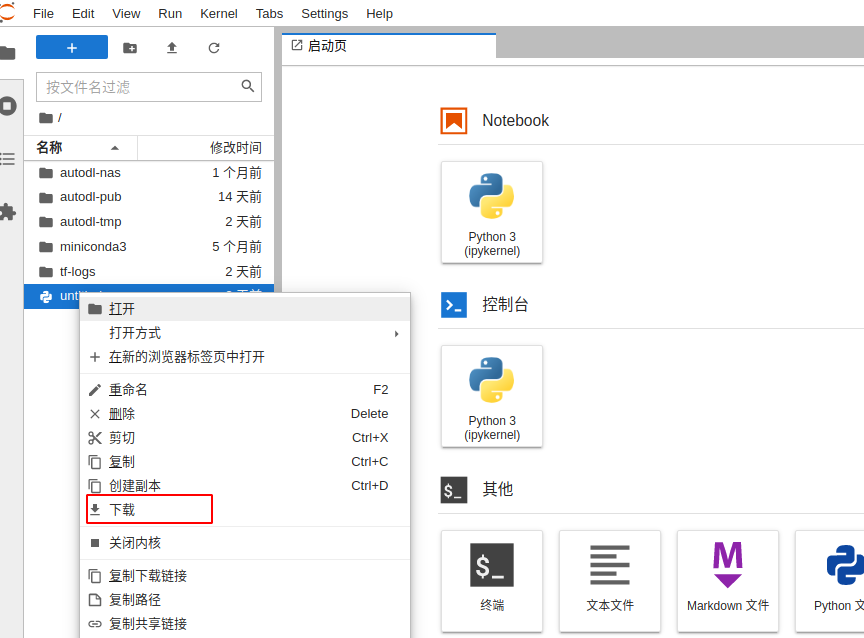
image-20220120170948920

scp command

⚠️ The commands below must be executed on your local machine, not within an instance;

If you are a Windows user, note that the default Windows system does not include an SSH client. We recommend downloading and using Cmder, a tool that requires no installation—simply unzip and use.

Copy your SSH login command, which should be formatted as follows: ssh -p 35394 root@region-1.webcal.com (Note that 35394 is the port number and region-1.webcal.com is the remote address; please replace these with your instance’s port and address.)

⚠️The parameter in the command below is -rP, not -rp

The command to download files remotely using SCP is: scp -rP 35394 root@region-1.webcal.com:<实例中的文件/文件夹> <本地文件/文件夹> (Note: This must be executed on your local machine.)

image-20220120171053877

FileZilla

See FileZilla

Siguiente artículoRemote SSH Connection
Docs de Compute RentalVolver a Guía