
Instancias de contenedor
Migration Example (Same Region)
For migrating instances within the same region, please refer to this documentation; the process is very simple and the migration is fast.
- The local data to be migrated from the instance includes data on both the system disk and the data disk; both can be migrated.
- To avoid the hassle of migrating instances due to a shortage of idle GPUs, you can switch from pay-as-you-go billing to annual or monthly billing (daily or weekly billing is also available).To do this: Select the annual or monthly billing plan when renting an instance, or for instances you’ve already rented, click “Switch to Annual/Monthly Billing” under “More Actions” for the instance. See the Convert Billing Plan documentation.
Step 0. Shut Down the Original Instance First, shut down the original instance.
Step 1. Clone the instance
Cloning an instance creates a new instance using the current instance’s system disk as a template. If you also need to copy the data disk, select the data disk option; the data disk will begin copying after the system disk has been cloned.
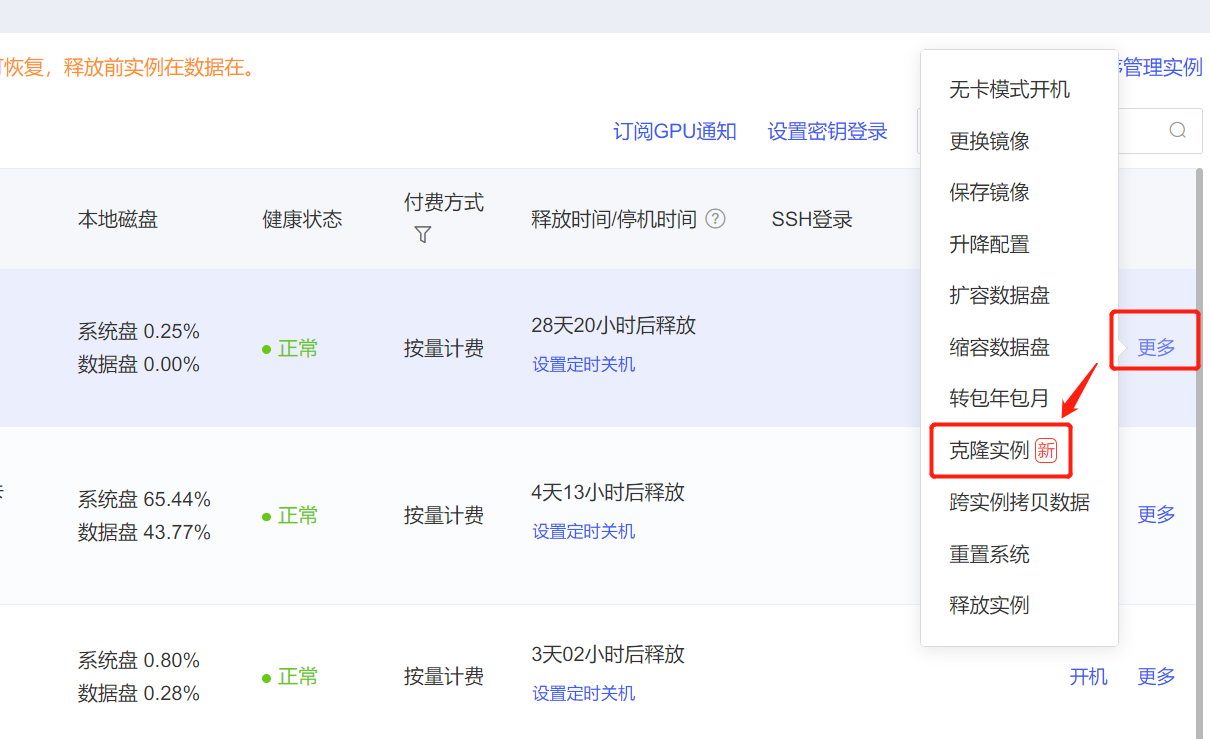
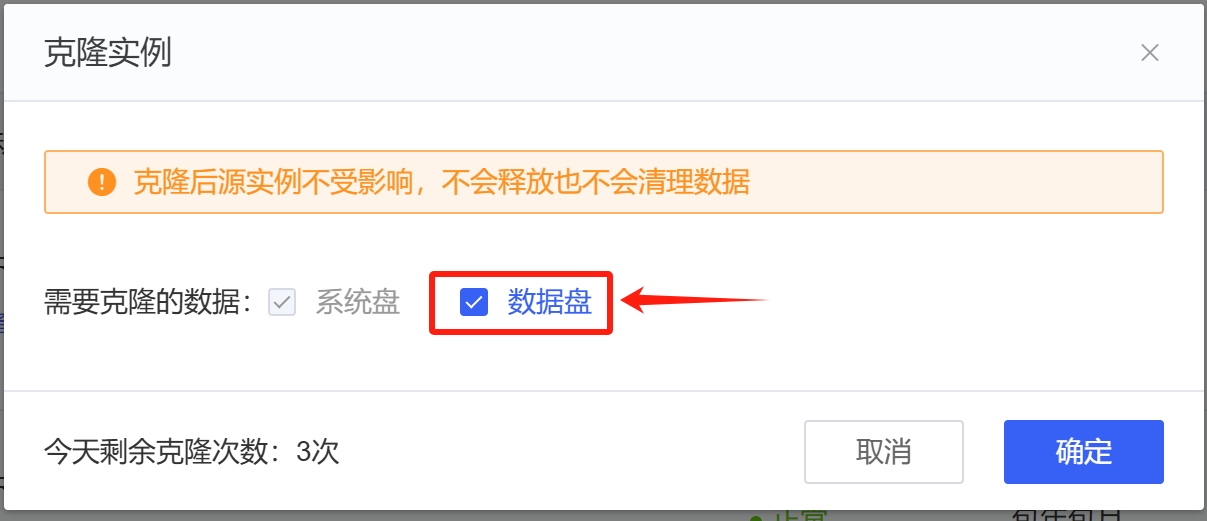
After clicking "Clone Instance," simply select a new host on the Create Instance page to create the instance.
Tips: If you forgot to check the option to copy data disks when cloning, you can click Copy Data Across Instances under "More Actions" for the original instance after the new instance has been created, and then copy the data disks.
Step 2. Handle Billing If your original instance is on an annual or monthly subscription plan, you can contact customer service to have them transfer your order to the new instance (this method will not result in any loss of usage time due to a change in billing method). If you prefer to handle this yourself, simply switch the original instance to pay-as-you-go billing.
There is already an instance in the same region; I do not want to create a new one
- Source instance system disk Save image; on the target instance, change the image under "More Actions." Alternatively, go to "More Actions" -> "Copy Data Across Instances" -> "Copy System Disk."Be sure to verify the source and target instances; the data on the target instance will be overwritten.
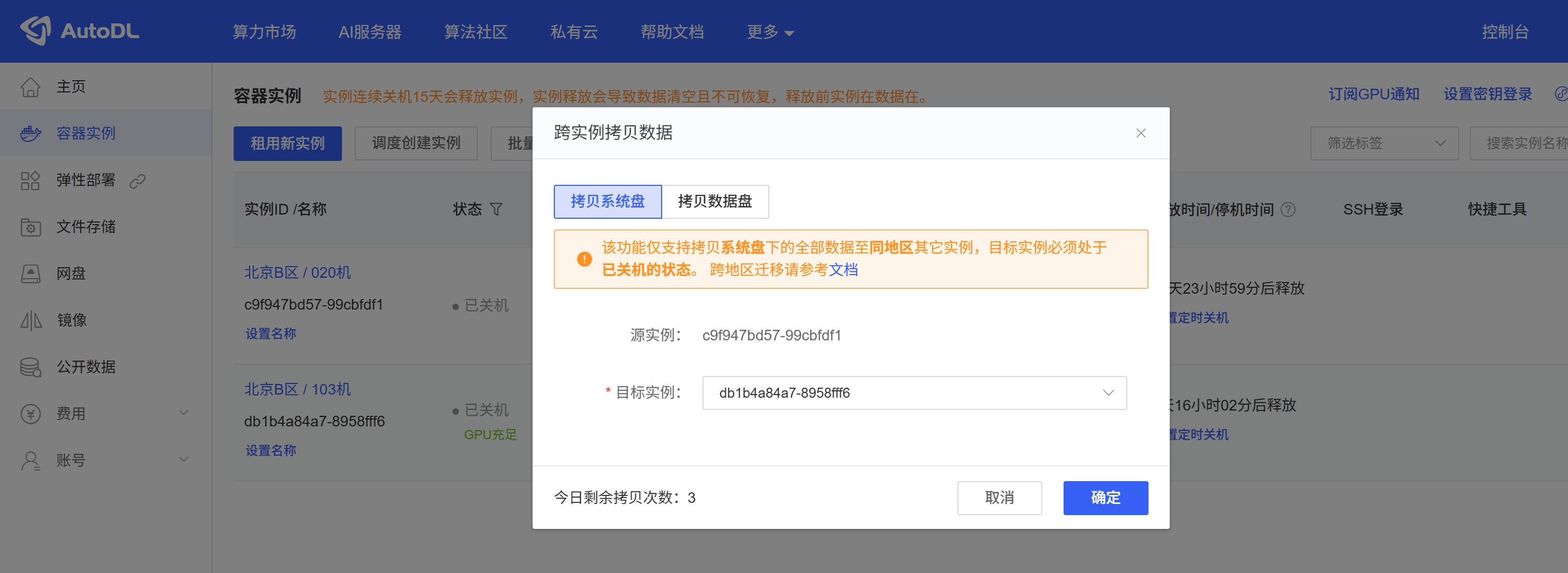
- For data disk information, see Copying Data Across Instances.