
WebCal
Ctrl K

Guía

Images

GuíaIntegracionesFAQSoporte
PreciosBlog
Inicio rápidoTop-Up and BillingAccelerating Access to Academic ResourcesQuick StartIntroductionMaintenance and TroubleshootingNetwork
PlataformaJetBrain ProjectorTmpWebCal Scholars Program @2026Introduction to the Public Beta/Suqian Zone AAbout UsCopying Data Between InstancesAnalysis of Server Performance MetricsTidal Computing PowerLoad Balancing
Chips nacionalesUsing Huawei MindIEHuawei Ascend NPUMooreThread GPU
Configuración del entornoCUDA/cuDNNMinicondaPython3.XInstalling DependenciesOverviewImages
Funciones empresarialesFlexible DeploymentElastic Deployment Release NotesBest Practices for Elastic DeploymentPerformance Metrics Monitoring
Instancias de contenedorJupyterLabRemote SSH ConnectionSave the imageScaling ConfigurationMulti-machine, multi-GPU parallel processingDaemonOverviewChange the billing methodMigration Example (Same Region)Migration ExamplesRemote DesktopReset the system
Elegir una GPUGPU SelectionPerformance Testing
DatosUpload DataDownload DataPublic DataPublic Cloud Storage (Highly Recommended)Compression / DecompressionFile StorageLocal data diskOverview
Prácticas recomendadasFileZillaGitGromacsHuggingFaceKataGoLinux BasicsMPIOpenCLPyCharm Remote DevelopmentR (RStudio) InstallationSSH TunnelTensorBoardRemote Development with VSCodeVisdomVulkanXShellOpen PortsWeChat MessagesPerformanceExpose multiple servicesMoney-Saving TipsComputation Precision IssuesSoftware Sources

Configuración del entorno

Images

30/07/202667437 vistas

WebCal does not currently support importing custom images.

If you have configured your environment on an instance and wish to reuse that environment when switching hosts or launching new instances—as well as preserve it long-term for future use—saving an image is the best option. Additionally, you can share images with other users.

Save the image

After shutting down an instance, click “Save Image” under “More Actions” to save the entire system disk of that instance (learn more about system disks).
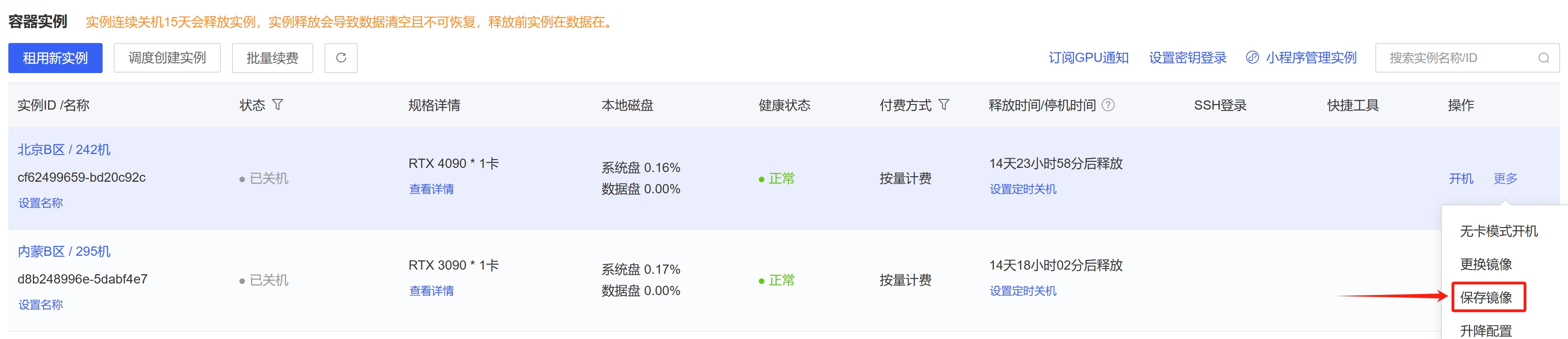
image_20250407172043

After saving the image, view it in the "Images" menu.
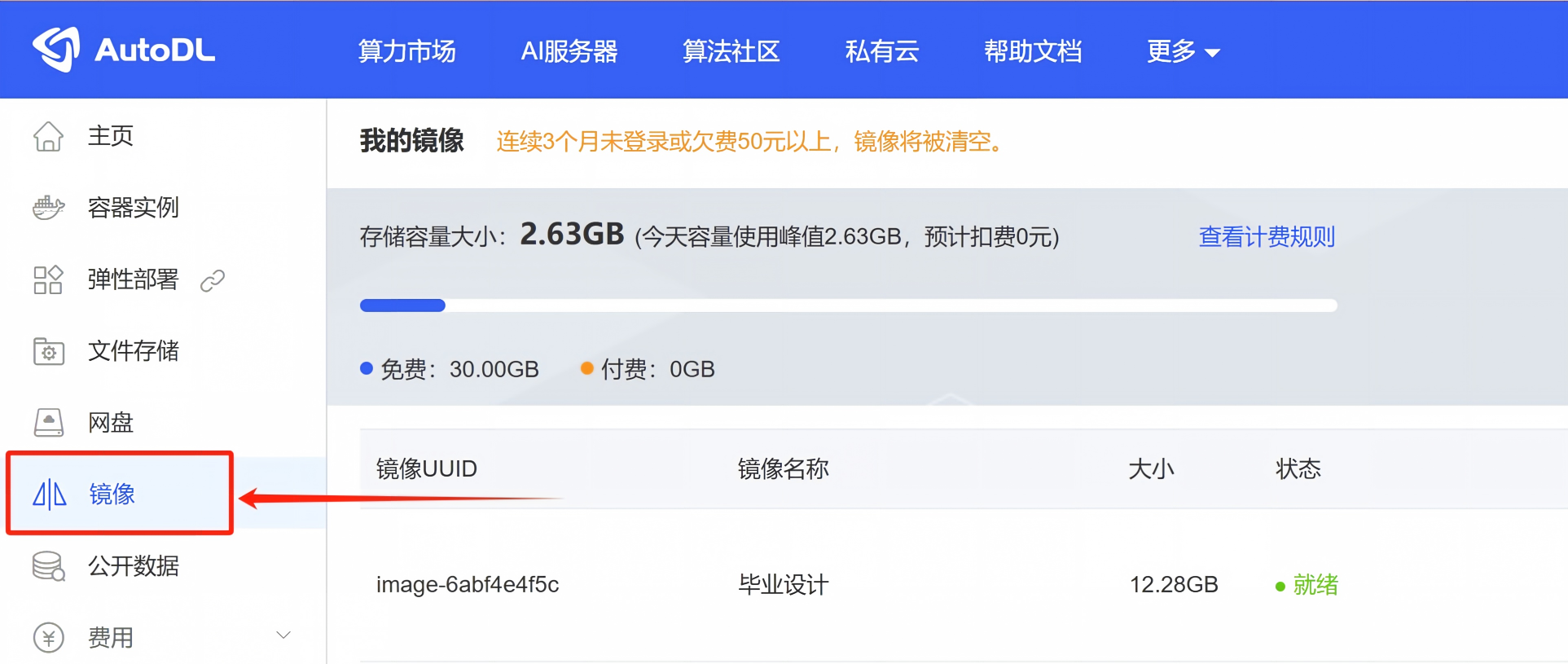
image_20250407172253

Loading an Image

When renting a new instance or selecting a new image for an existing instance, choose the image you saved to restore all content from the original instance’s system disk.
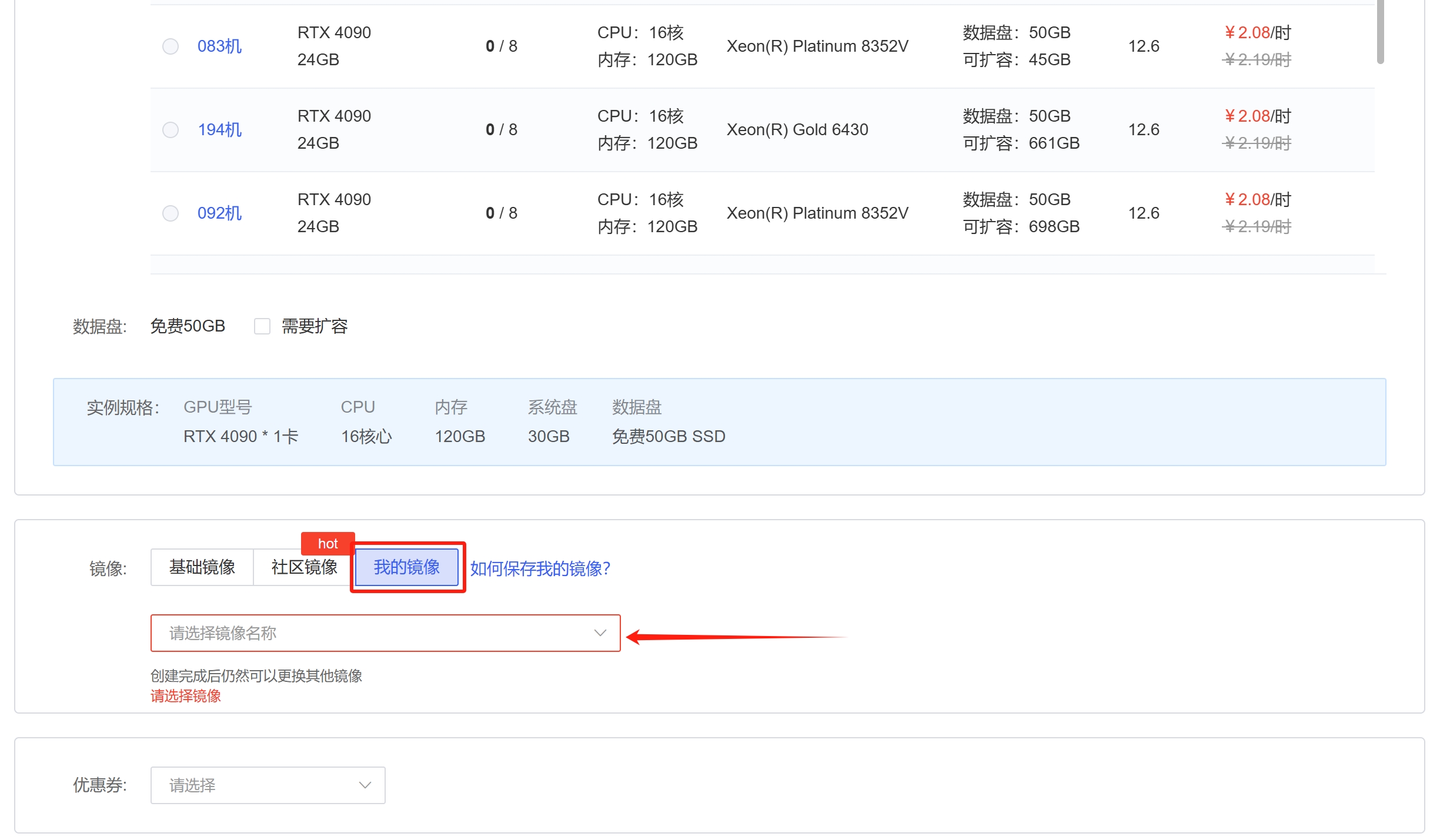
image_20250407172422

Switching Mirrors

After shutting down the instance, click "Change Image" under "More Actions." Changing the image will wipe the system disk; the data disk will not be affected. (Learn about the system disk)

image_20250428172030

Shared Images

After saving the image, you can click “Share” in the operations menu to share it with specified users.
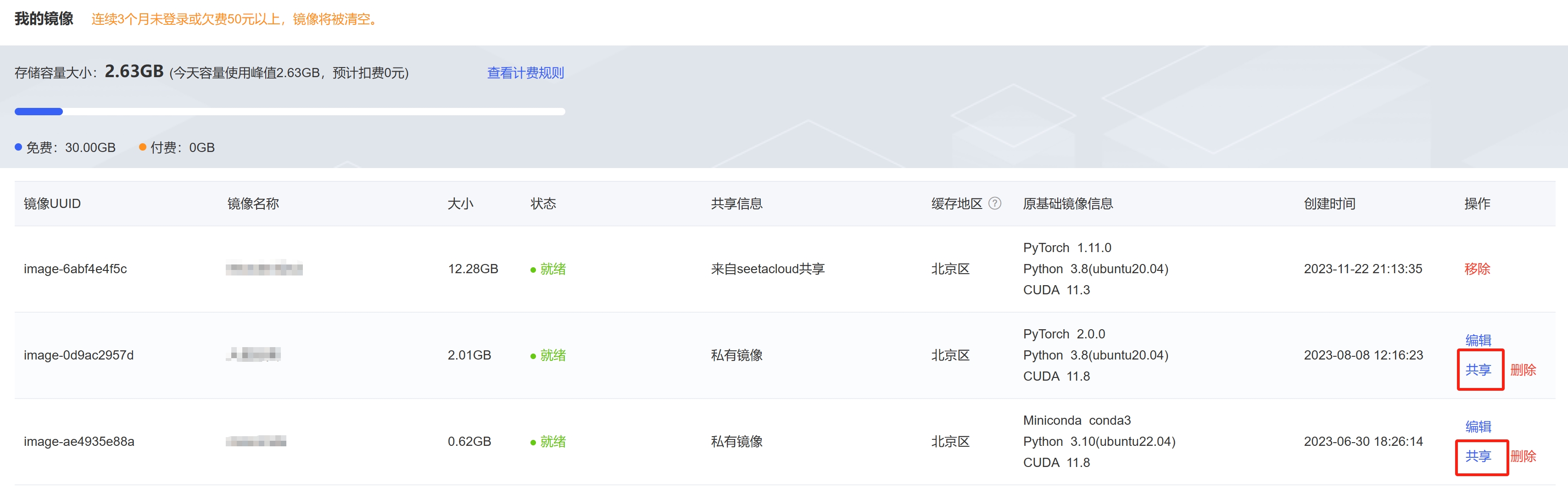
image_20250407172629

The other party’s user ID can be found in the username drop-down menu at the top of the page.
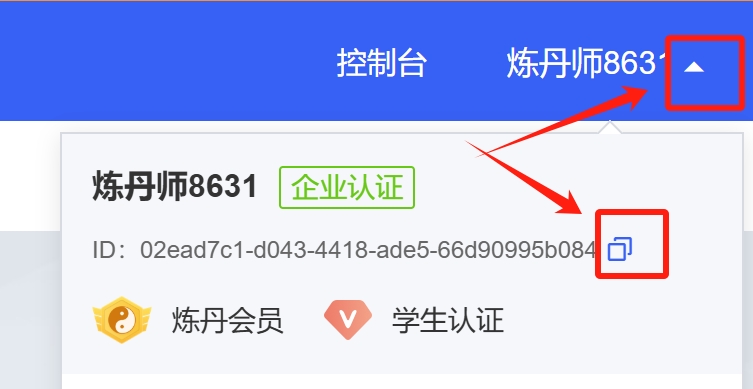
image_20250407172723

Siguiente artículoNetwork
Docs de Compute RentalVolver a Guía