Compute Rental
Ctrl K

Guide

JupyterLab

GuideIntegrationsFAQSupport
PricingBlog
Quick StartTop-Up and BillingAccelerating Access to Academic ResourcesQuick StartIntroductionMaintenance and TroubleshootingNetwork
PlatformJetBrain ProjectorTmpWebCal Scholars Program @2026Introduction to the Public Beta/Suqian Zone AAbout UsCopying Data Between InstancesAnalysis of Server Performance MetricsTidal Computing PowerLoad Balancing
Domestic ChipsUsing Huawei MindIEHuawei Ascend NPUMooreThread GPU
Environment SetupCUDA/cuDNNMinicondaPython3.XInstalling DependenciesOverviewImages
Enterprise FeaturesFlexible DeploymentElastic Deployment Release NotesBest Practices for Elastic DeploymentPerformance Metrics Monitoring
Container InstancesJupyterLabRemote SSH ConnectionSave the imageScaling ConfigurationMulti-machine, multi-GPU parallel processingDaemonOverviewChange the billing methodMigration Example (Same Region)Migration ExamplesRemote DesktopReset the system
Choosing a GPUGPU SelectionPerformance Testing
DataUpload DataDownload DataPublic DataPublic Cloud Storage (Highly Recommended)Compression / DecompressionFile StorageLocal data diskOverview
Best PracticesFileZillaGitGromacsHuggingFaceKataGoLinux BasicsMPIOpenCLPyCharm Remote DevelopmentR (RStudio) InstallationSSH TunnelTensorBoardRemote Development with VSCodeVisdomVulkanXShellOpen PortsWeChat MessagesPerformanceExpose multiple servicesMoney-Saving TipsComputation Precision IssuesSoftware Sources

Container Instances

JupyterLab

07/30/202652866 views

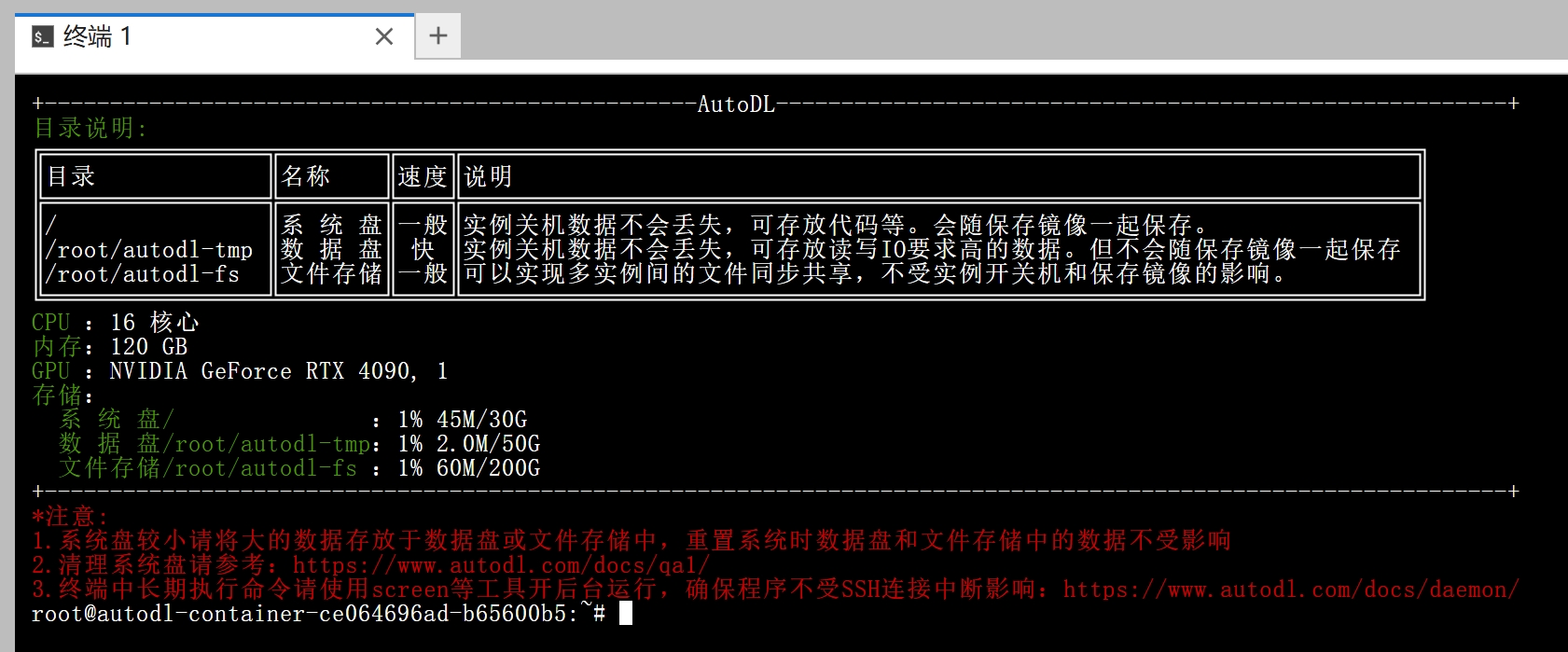
⚠️The working directory for JupyterLab is /root, not the system root directory at /. To view the root directory at /, open a terminal and use the command line.

Introduction to Basic Features

Open JupyterLab: Console -> Container Instances -> JupyterLab
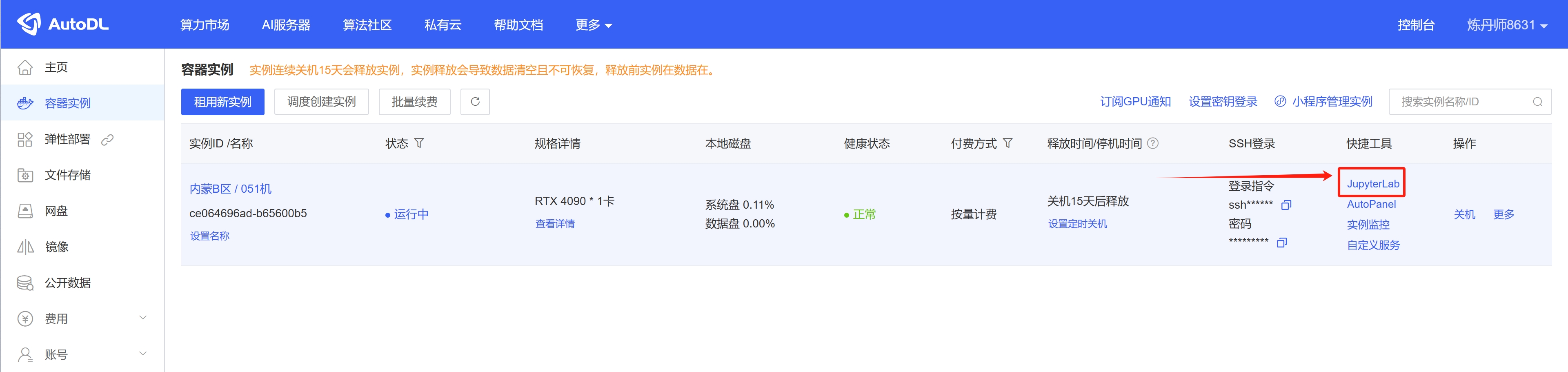
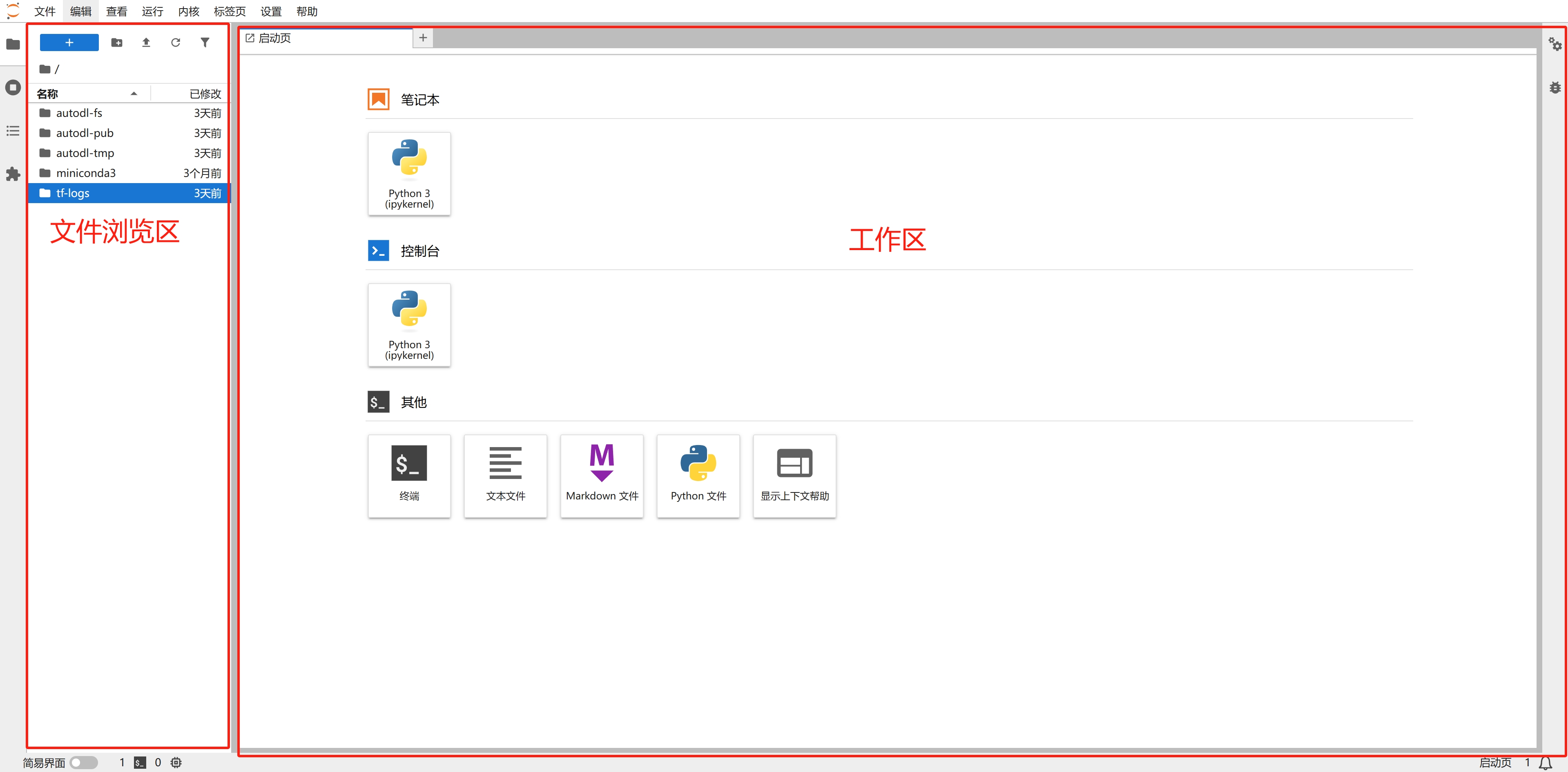
image_20250307155430

JupyterLab Interface Guide

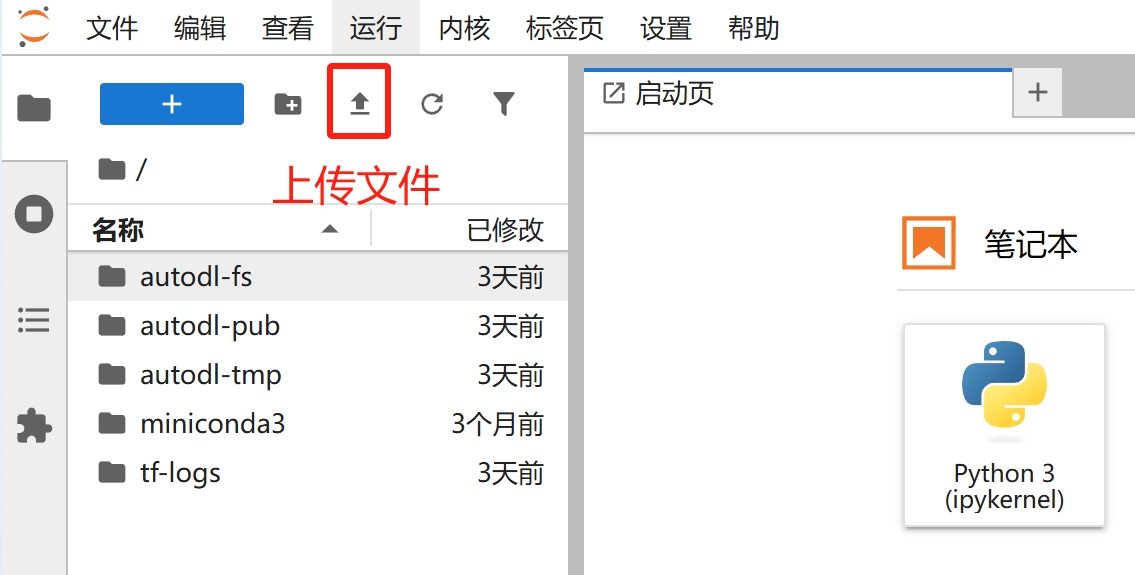
image_20250307162801

Upload file

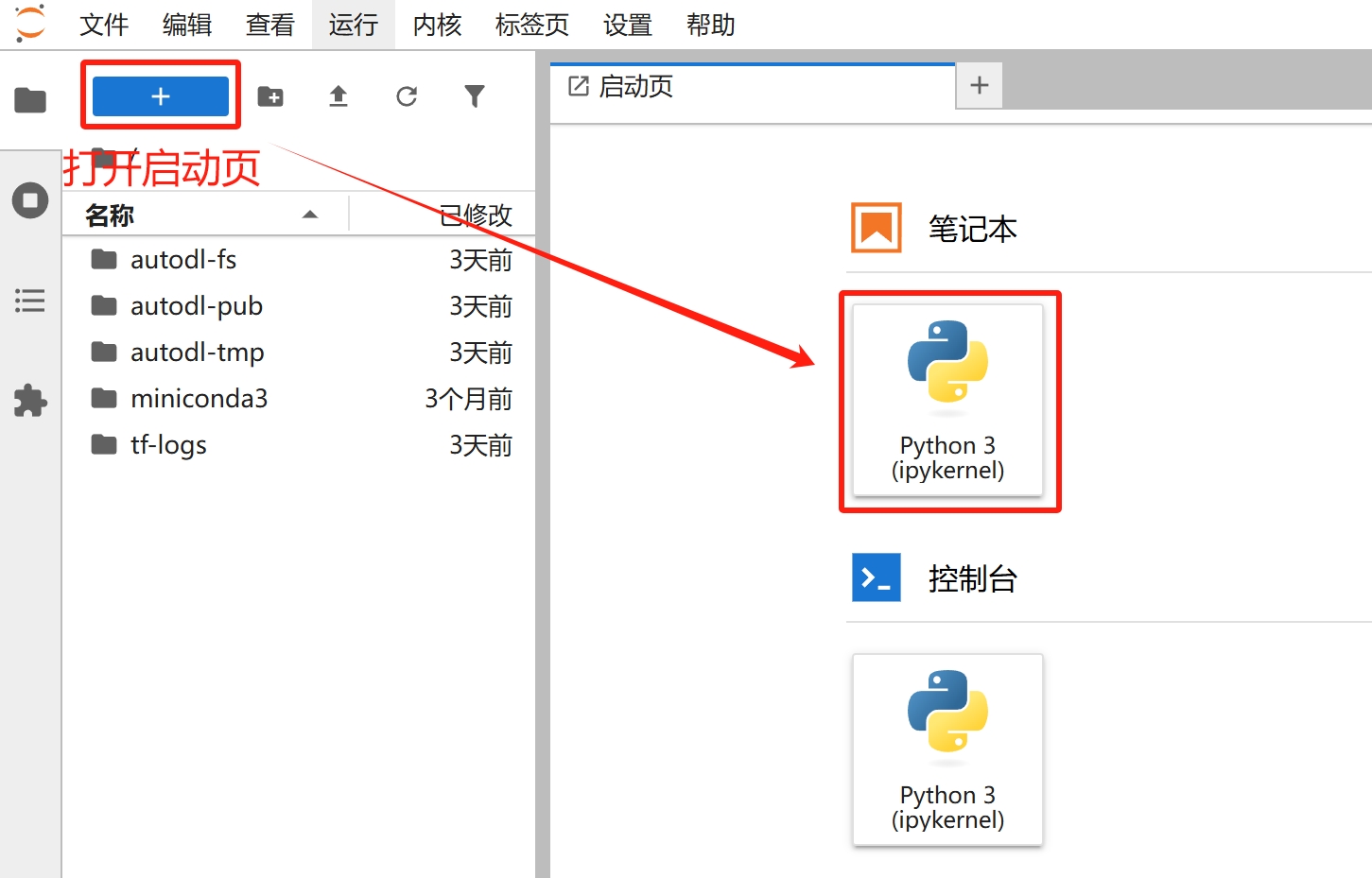
image_20250307161341

Using Notebooks

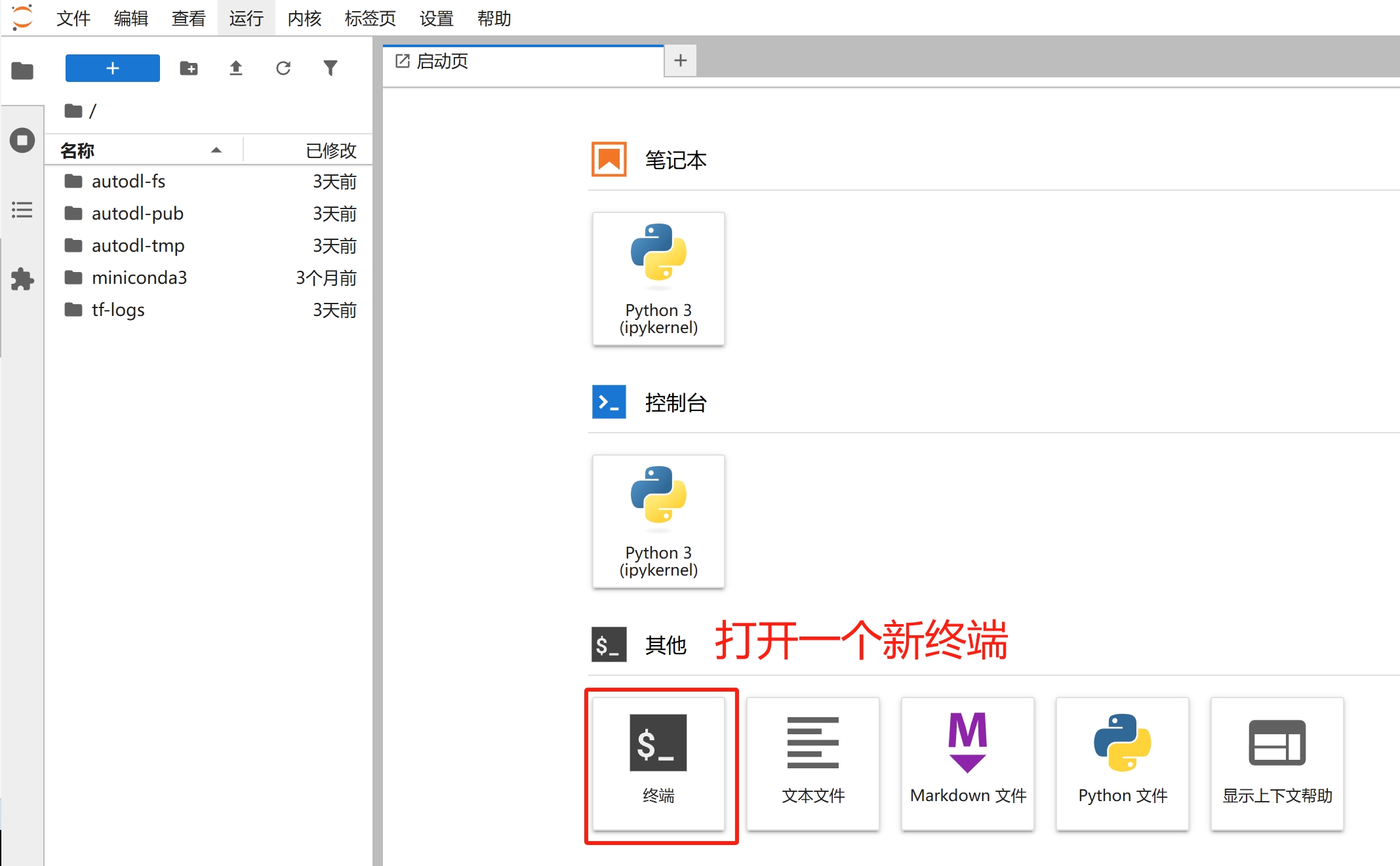
image_20250307161509

Open a new terminal

image_20250307161553

image_20250307161635

Access the open terminal or Notebook (JupyterLab does not terminate by default when you close the terminal or Notebook tab; it continues to run).
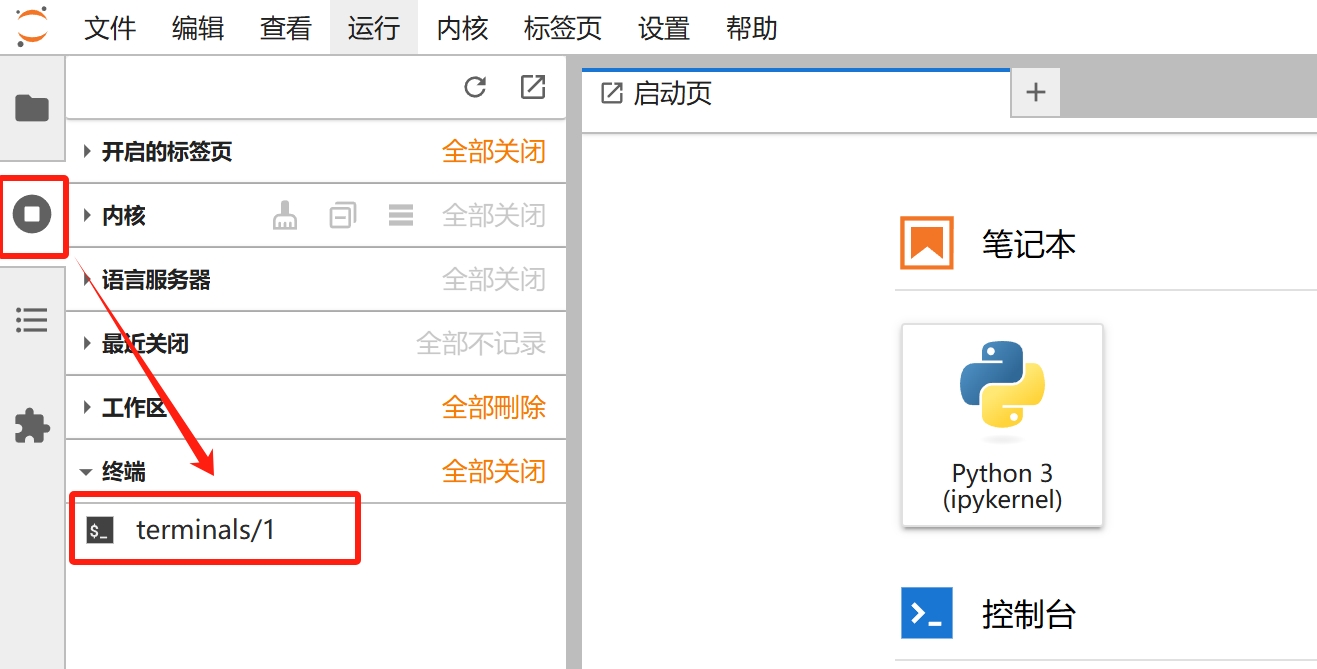
image_20250307161714

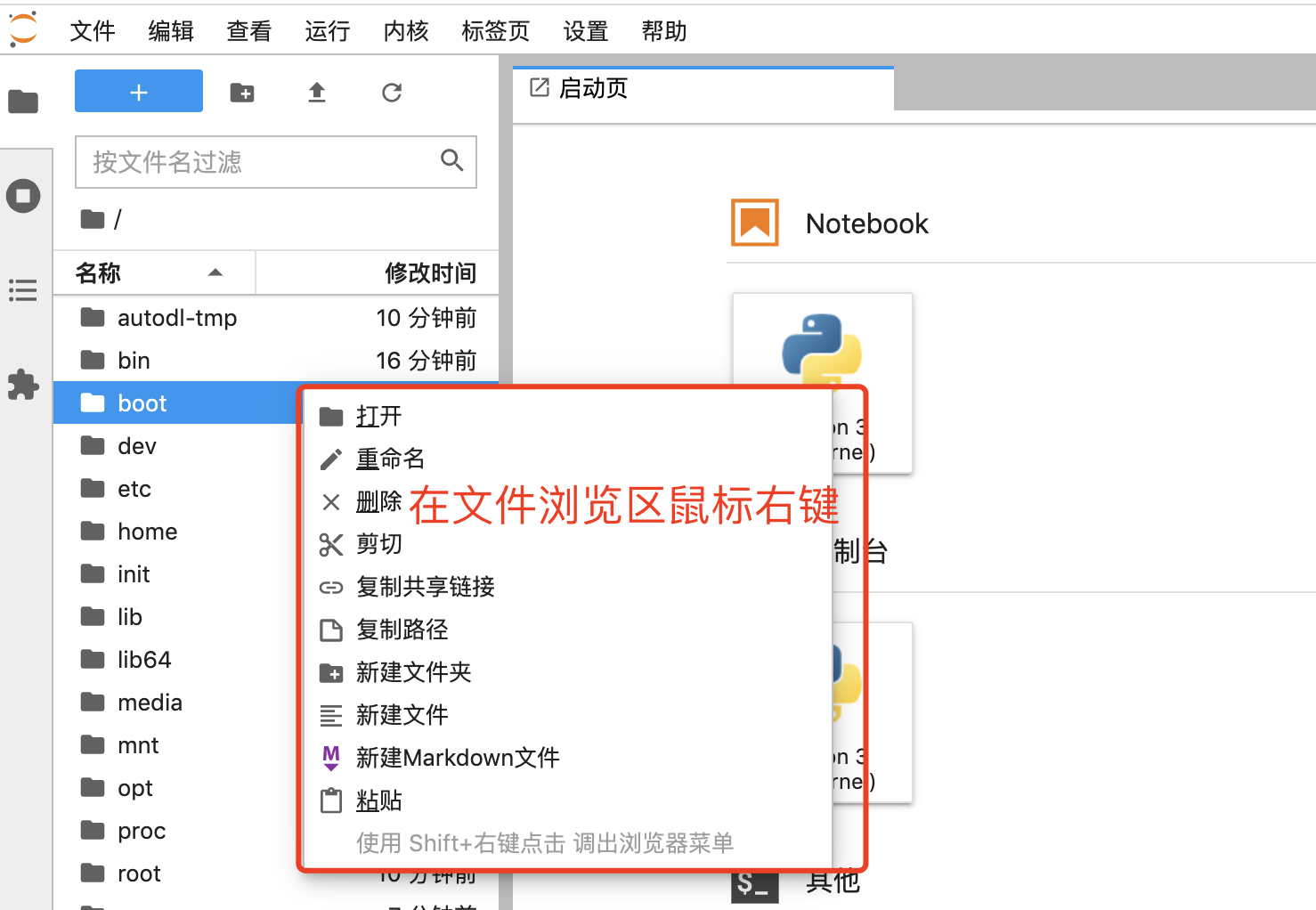
File Management

image-20210820115753524

Appendix: Frequently Asked Questions

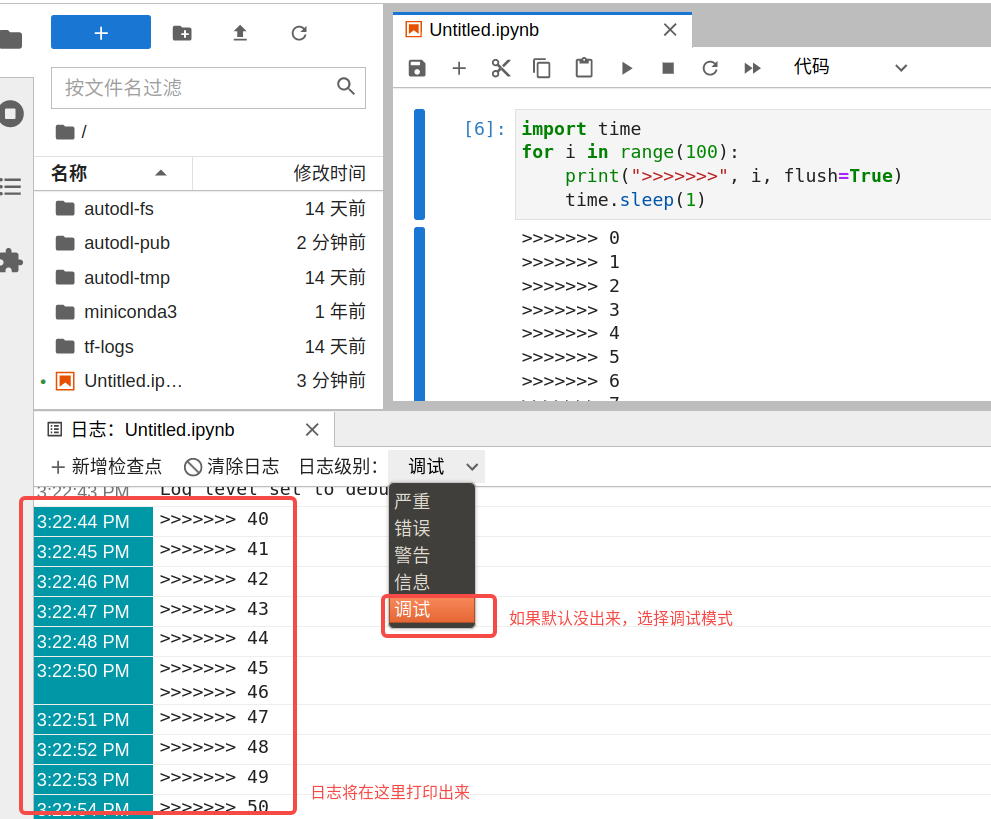
Users running programs in a Notebook may notice that the Notebook’s logs stop updating after a while. In this case, you can use the “Log Console” feature to view the logs. Here’s a step-by-step demonstration of the process:

After running the following code snippet, refresh the webpage and you will see that the logs are no longer updating.
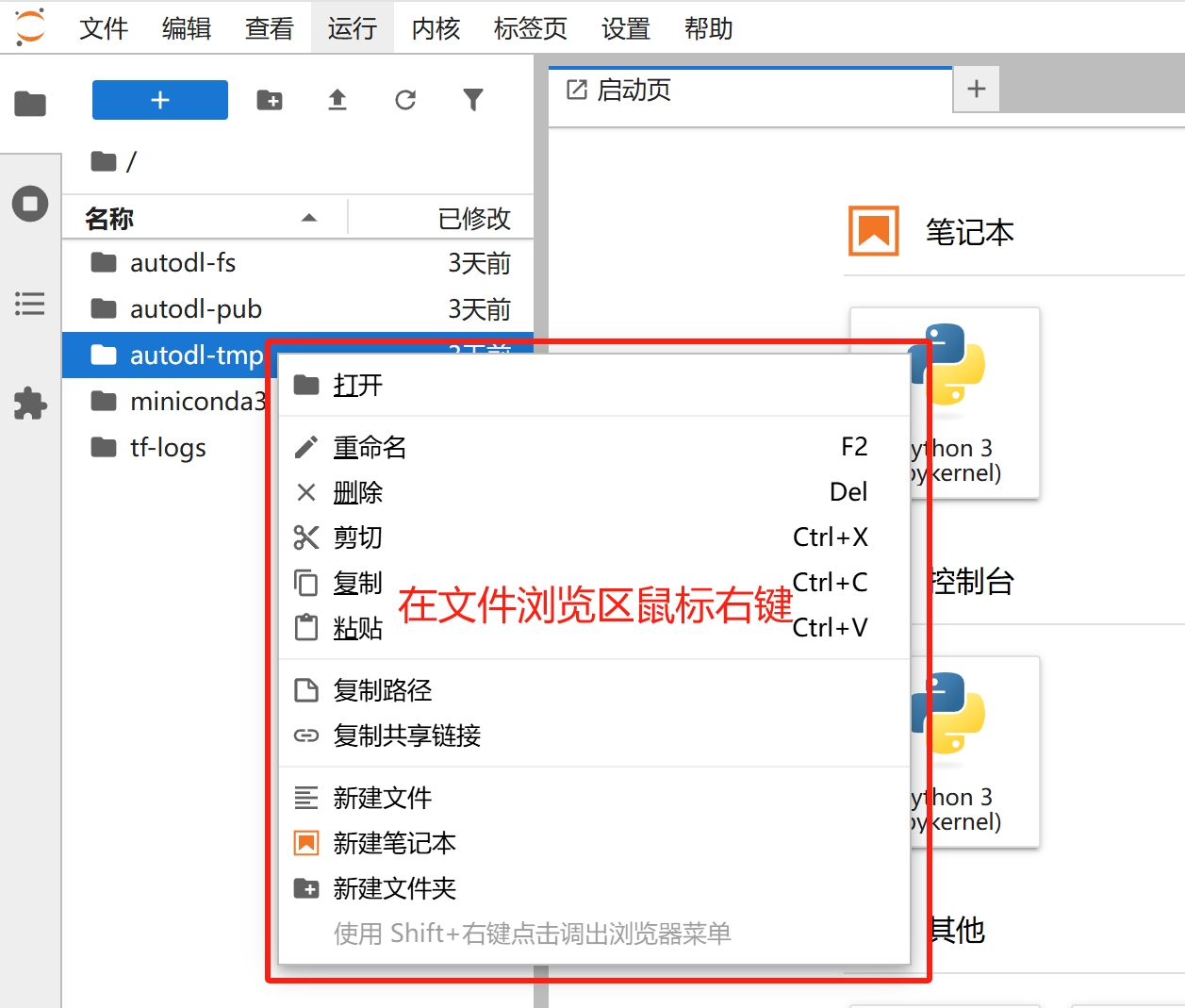
image_20250307161831

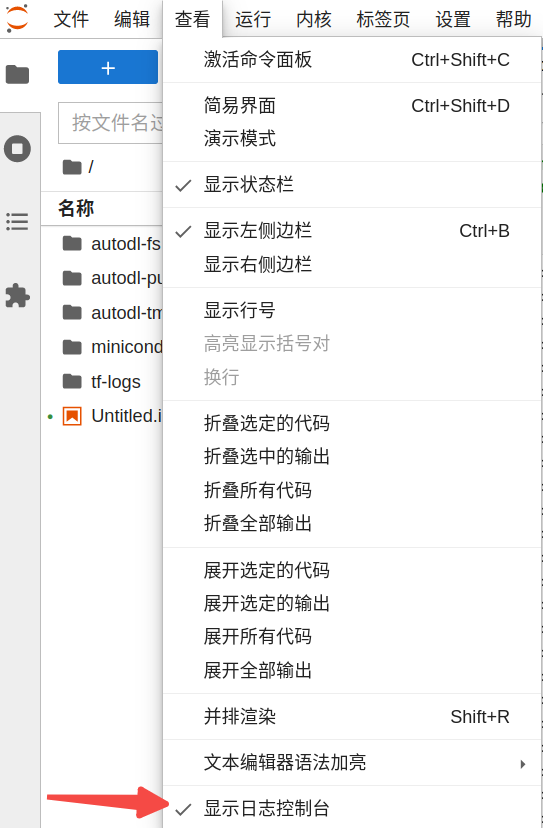
Open the log console:

image-20221028152841811

image-20221028152930038

Next articleGPU Selection
Compute Rental DocsBack to Guide