
자주 묻는 질문
Insufficient space on the system drive
Note: Files deleted using the
rmcommand cannot be recovered.
First, you need to identify which directory is taking up space on the system drive. If you are unsure what a system drive is, please refer to the help documentation
Use source ~/.bashrc to view system disk and data usage.
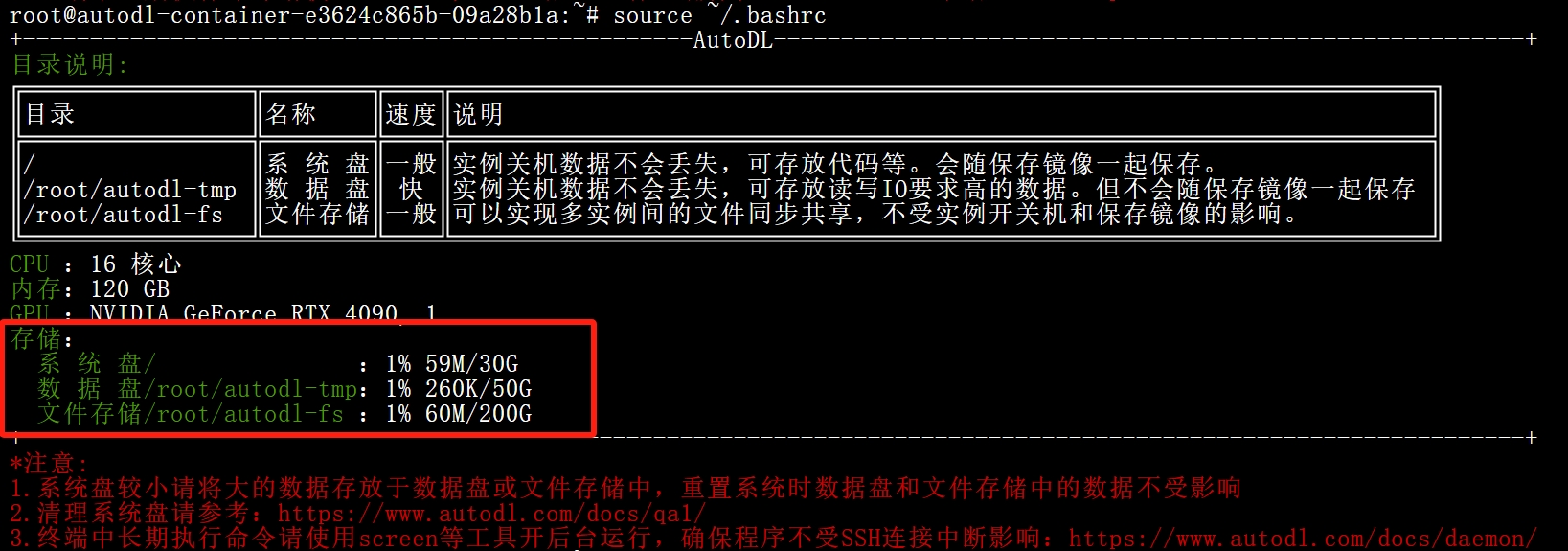
The following two directories can be deleted directly without affecting system operation, so delete them directly first. If this does not free up space, continue reading below.
du -sh /root/miniconda3/pkgs/ && rm -rf /root/miniconda3/pkgs/*      # conda的历史包
du -sh /root/.local/share/Trash && rm -rf /root/.local/share/Trash   # jupyterlab的回收站
The following directories may take up a significant amount of space, but you should clean them up based on your actual situation:
du -sh /tmp/         #查看/tmp占用的空间大小
du -sh /root/.cache  #查看/root/.cache占用的空间大小
Normal Cleanup Steps
First, check the disk usage of files and directories. Folders under the system or root directory generally do not take up much disk space, so you should focus on checking the directories or files you have created.
File Size
Use the ls -alh command to view the sizes of files such as .bashrc and .profile shown below. However, the folder size displayed is only the size of the folder itself, not the combined size of all files within it.
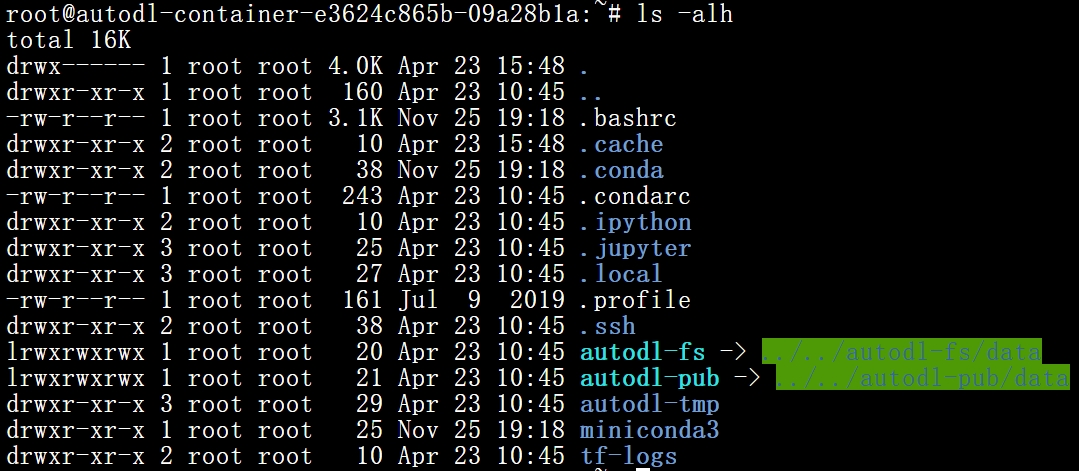
Folder Size
Use the du -sh xxx command to recursively calculate the sizes of all files in this folder.

Delete
Use rm -rf xxx to delete files/folders and free up space
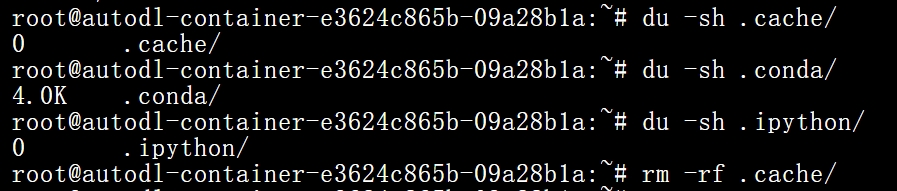
Special folders that do not take up space on the system drive
/root/webcal-tmp
/root/webcal-nas
/root/webcal-pub
/root/webcal-fs
Cleaning Up the Data Disk
First, navigate to the data volume at cd /root/webcal-tmp, then repeat the cleanup steps described above.

Disk space on the data volume is typically occupied by files left in the trash that haven’t been cleared. Look for the folder
/root/webcal-tmp/.Trash-0. Once you’ve confirmed that the files are no longer needed, usermto delete them.
I no longer need the data; please delete it all.
System disk: In the instance’s “More” actions, click “Reset System.” The system disk will be wiped and restored to the initial state of the image. Please refer to the documentation.
Data disk: Run rm -rf /root/webcal-tmp/* to delete all files on the data disk. Note that hidden files (files ending in .xxx) cannot be deleted.